This feature is documented for Cloud. For availability in your Data Center version, contact VIEW26 support.
Let’s take a look at how to create a Custom Widget of KPI Type.
-
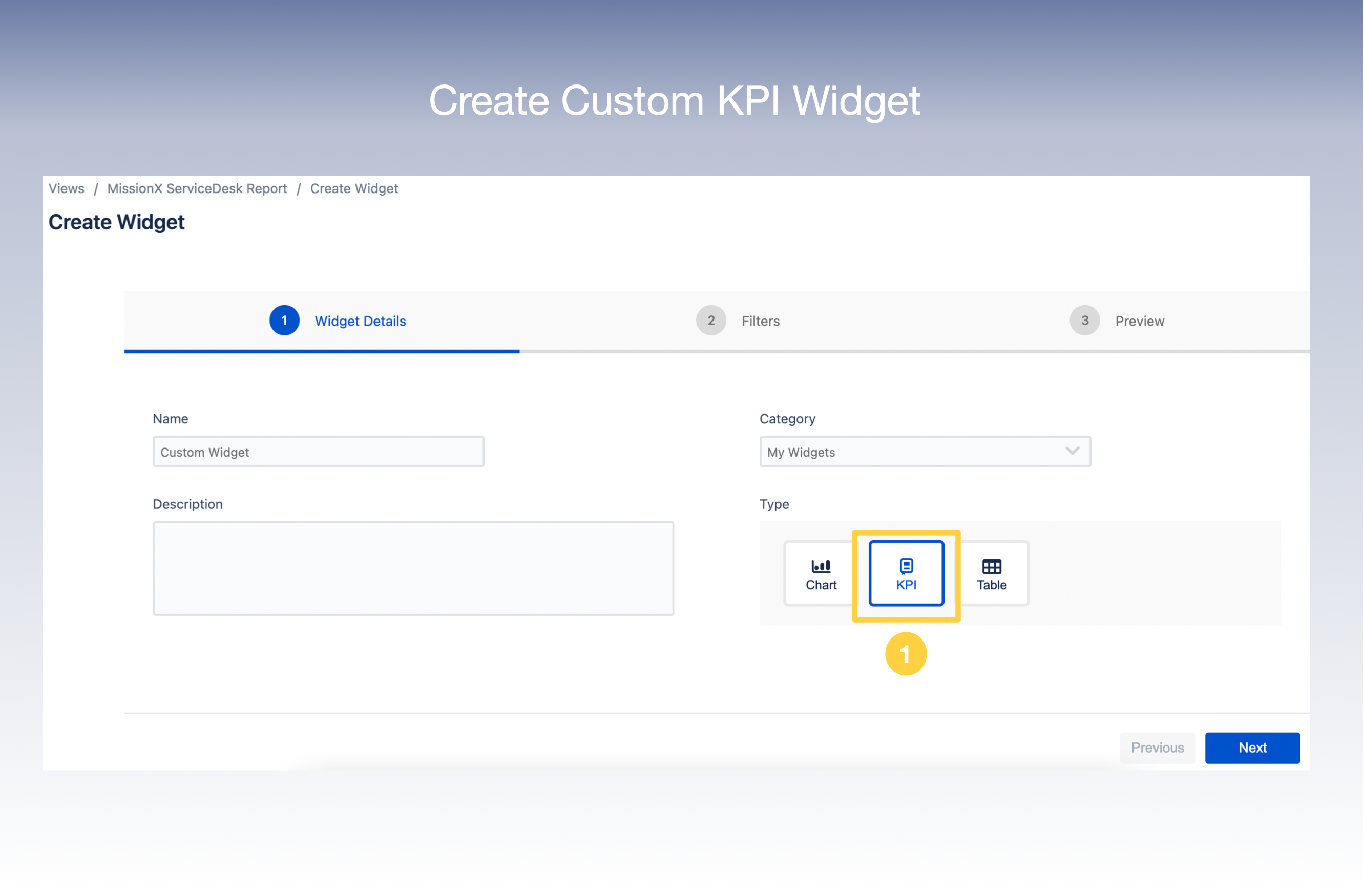
Select Type as KPI on the Create Widget screen.
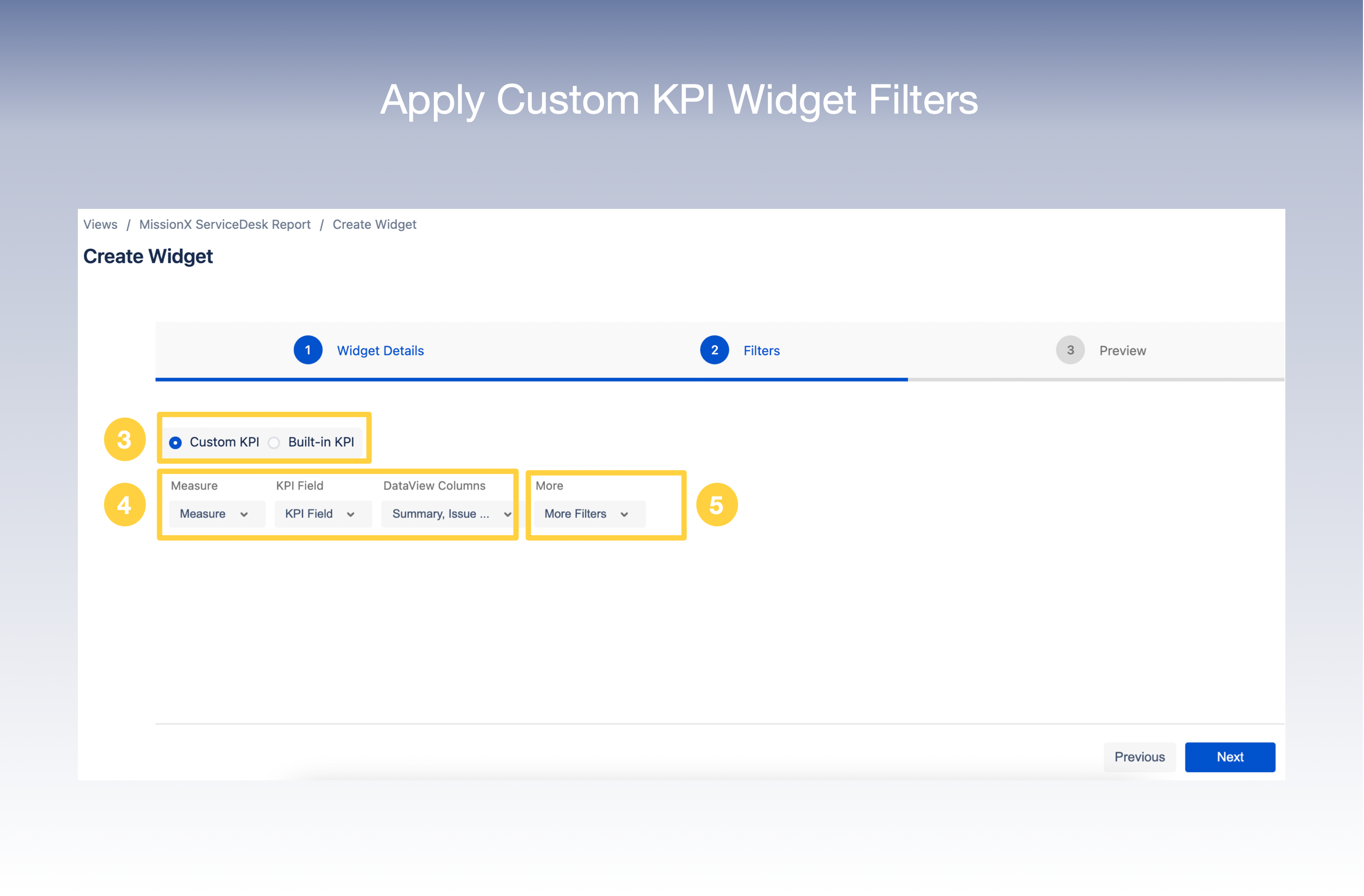
2. In the next screen, select the Filters you wish to apply to your view .
3. You can choose between Custom KPI and Built-in KPI.
4. Select your Filter criteria
For Custom KPI- Select Measures, KPI Field, Dataview Columns as required from the drop down lists.
For Built-in KPIs -Select Built-in KPIs, Dataview Columns as required from the drop down lists.
5. There is also an option to add More Filters.
6. Click Next
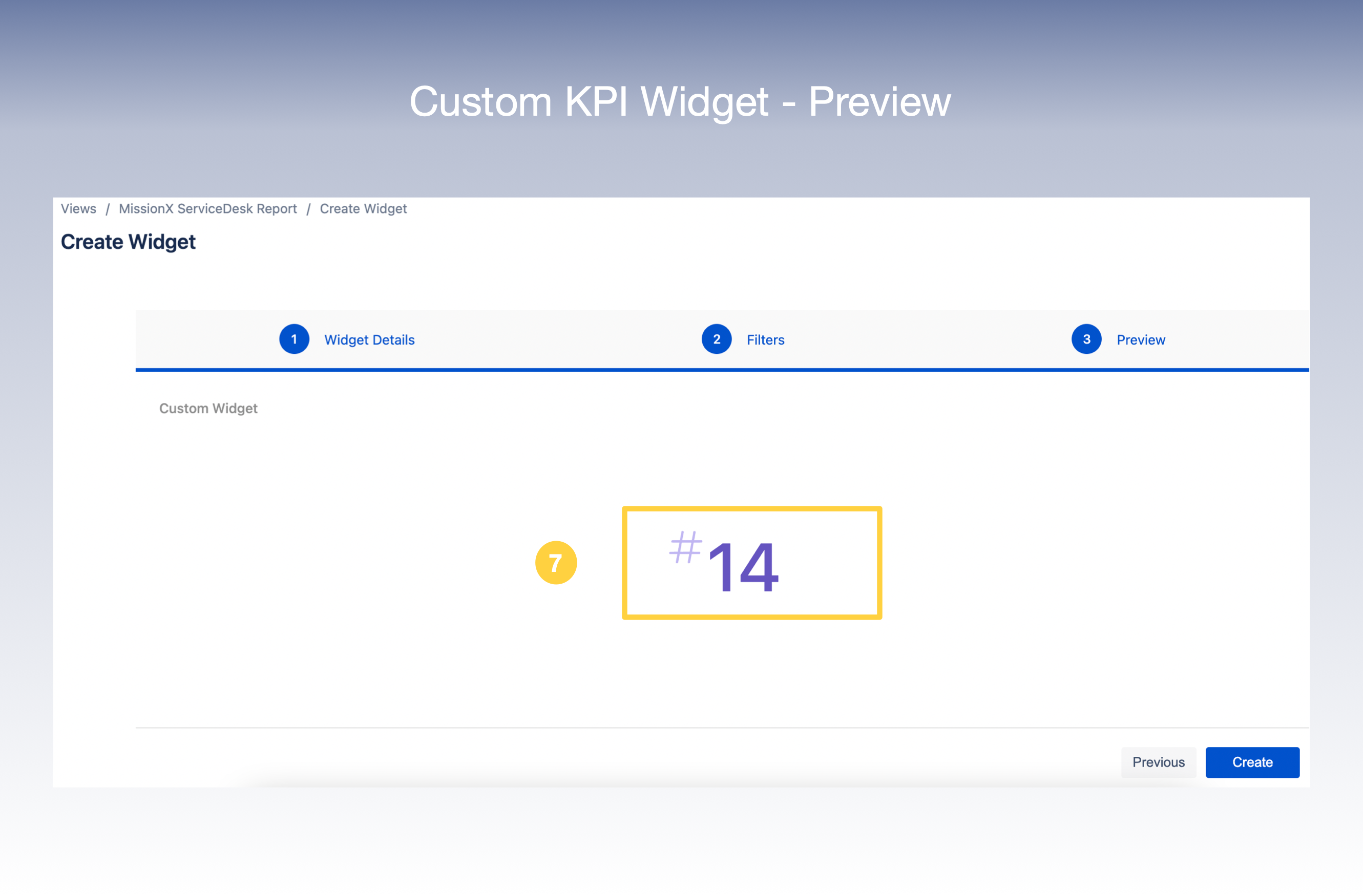
7. You can now get a Preview of your Widget on your screen.
8. Click Create
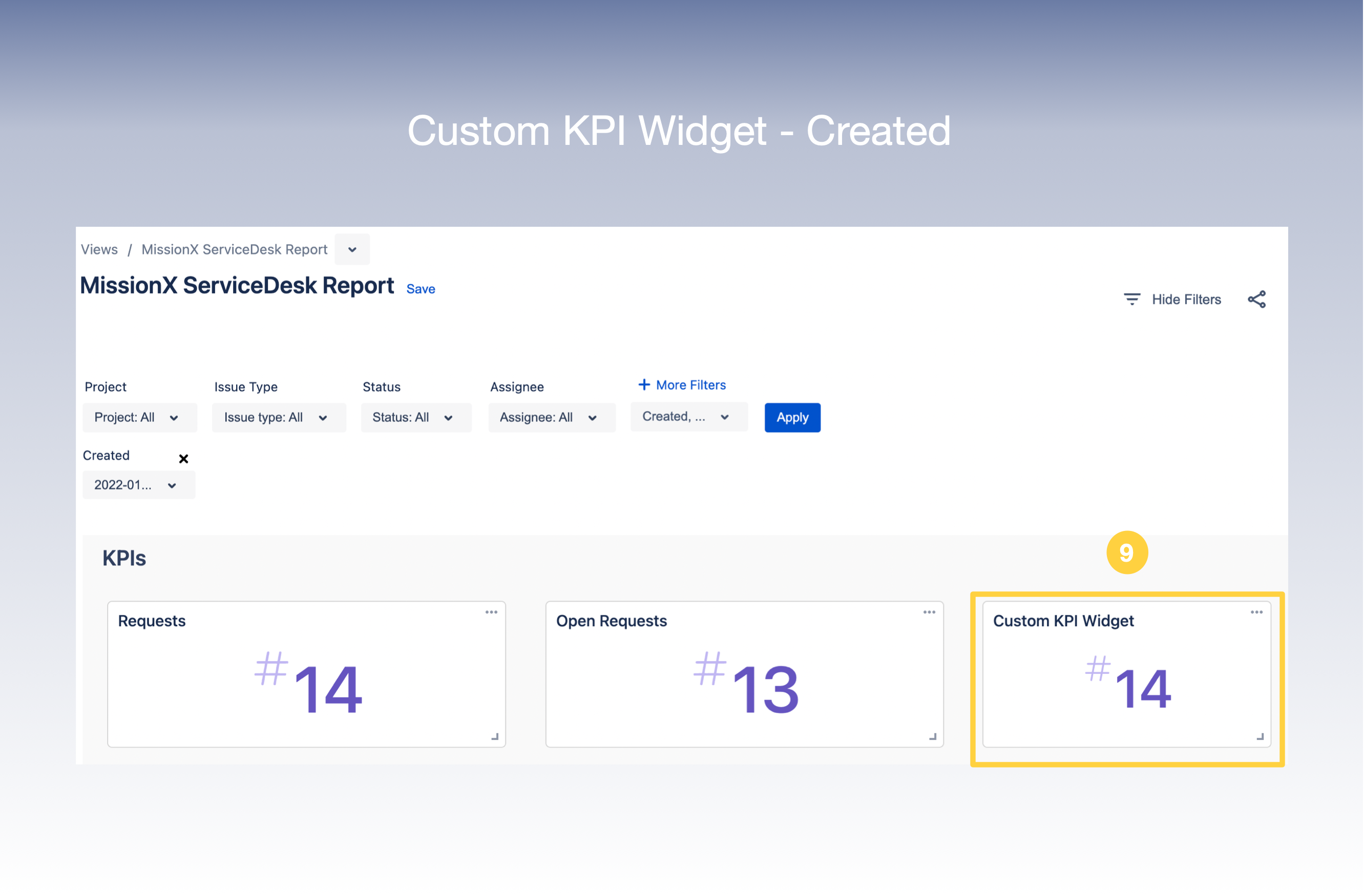
9. And now you have successfully created your Custom KPI Widget which will appear in your View.