
Use labels to pull related files together, across projects or on one work item.
Find attachments by label
-
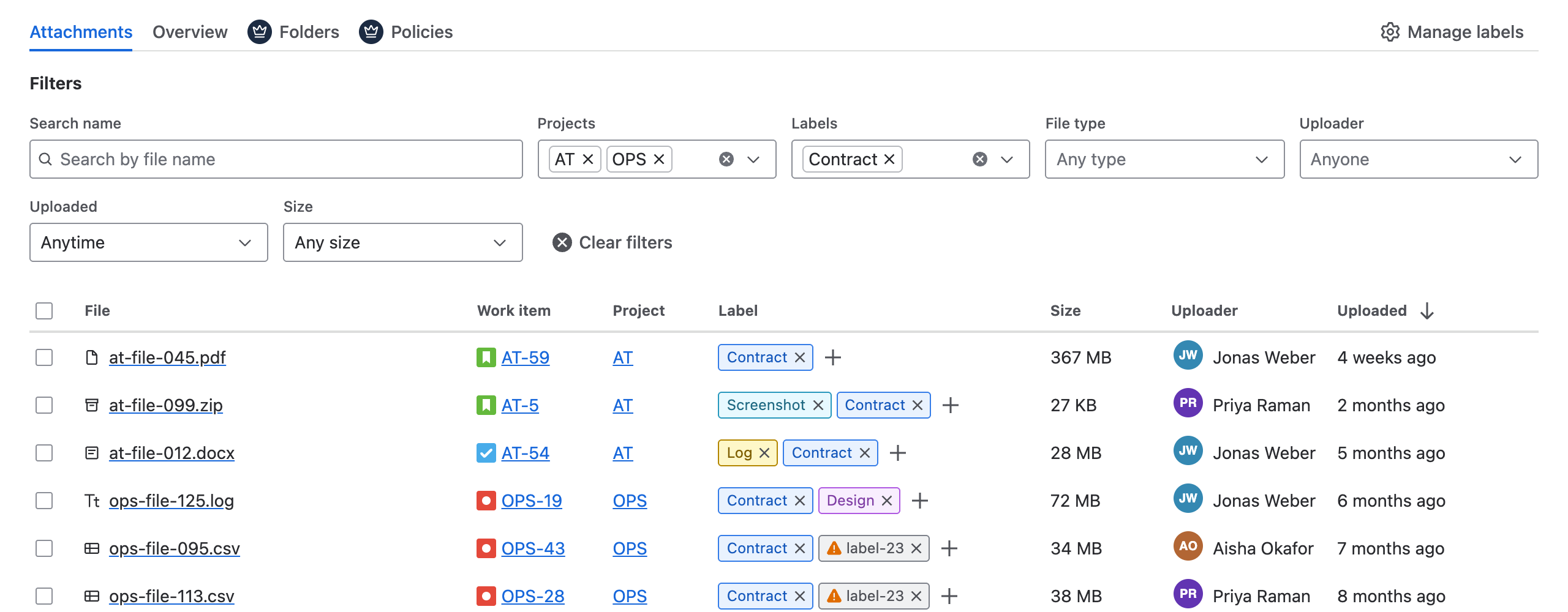
Open Apps → Attachment Manager and stay on the Attachments tab.
-
Open the Labels filter and select one or more labels. With several labels selected, you see files that have any of them.
-
Narrow the list with Projects, File type or Search name if you need to. All filters apply together.
-
Select the work item key beside a file, such as AT-41, to open that work item.
On a work item
In the Attachments panel, select Panel options and choose Group → Label to list files with the same labels together. When the files on the work item carry two or more different labels, a Filter by label field also appears.
These labels are separate from Jira’s own Labels field, so Jira search (JQL) cannot find them. Use the Labels filter instead.
Related pages