
A brand kit in Storyboard AI for Jira sets your logo, intro clip and background music once for your whole Jira site. Every video made from a work item then uses them automatically, including videos rendered by the Storyboard AI agent in Rovo. Only Jira administrators can change the brand kit. Anyone can switch parts of it off for a single video.
Set up the brand kit
-
In Jira, open Apps and choose Storyboard AI.
-
Open the Brand kit tab.
-
Upload any of the three items below. Each one saves as soon as it's uploaded.
You'll see Saved. New renders use this from now on. after each change.
If you aren't a Jira administrator, the tab shows what your videos currently use, but you can't change it.
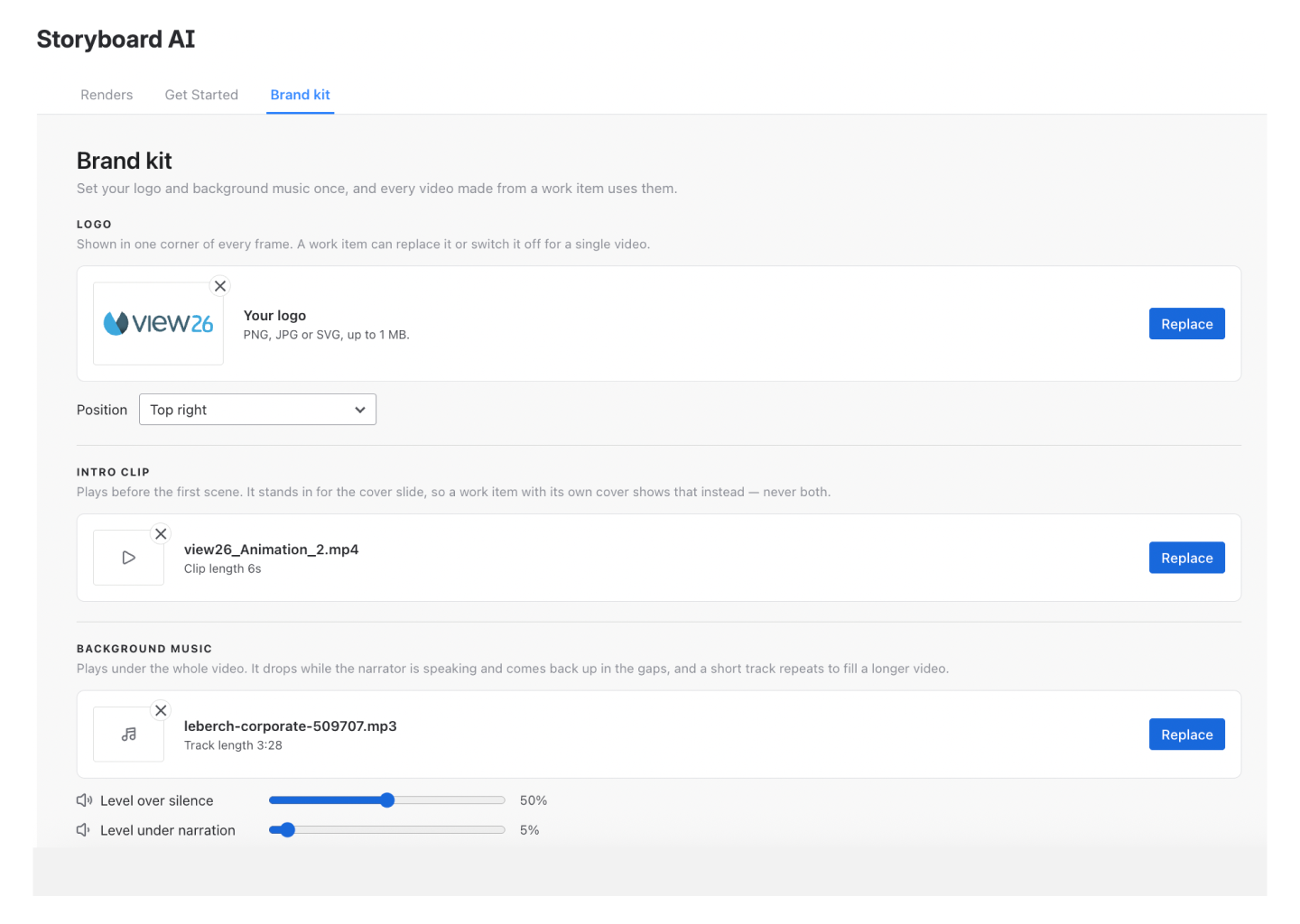
Logo
-
PNG, JPG or SVG, up to 1 MB.
-
Choose a corner: Top left, Top right, Bottom left or Bottom right.
-
The logo appears in that corner on every frame of the video.
Intro clip
-
MP4, up to 100 MB. Clips larger than 1920×1080 are resized before upload.
-
Plays before the first scene.
-
Plays only when the video's cover frame is switched off. If a video has a cover frame, the cover plays instead of the intro clip.
Background music
-
MP3, WAV or M4A, up to 20 MB.
-
The track loops to fill the whole video, gets quieter while the narration plays, and fades out at the end.
-
Two sliders set the volume: Level over silence (when no one is speaking) and Level under narration (while the voiceover plays).
Storyboard AI doesn't include a music library. Upload a track you have the rights to use in your videos.
Switch the brand kit off for one video
In the frame editor, a From your brand kit box shows what a video will inherit. Each item has its own checkbox:
|
Setting |
Where in the editor |
Checkbox |
|---|---|---|
|
Logo |
Cover Settings panel |
Use the brand logo on this video |
|
Intro clip |
Cover Settings panel, with the cover switched off |
Play the brand intro on this video |
|
Background music |
Audio & Captions panel |
Play the brand music on this video |
To use a different logo on one video, upload it in the Cover Settings panel. It replaces the brand logo for that video only.
When changes take effect
The brand kit is applied each time a video renders, not when the storyboard is created. If you change the kit, every later render uses the new version, including re-renders of older storyboards. Videos you've already downloaded don't change.