
Attachment Manager for Jira offers Standard and Advanced editions. Upgrade to Advanced to organize attachments in folders, share collections with your team, and connect your tools through the REST API.
Before you begin
-
Use an organization or site administrator account for the site where Attachment Manager is installed.
-
Check the Marketplace listing for current pricing. For annual billing, arrange the upgrade through your Atlassian Customer Advocate.
Upgrade from Standard to Advanced
-
Open Atlassian Administration and select your organization.
-
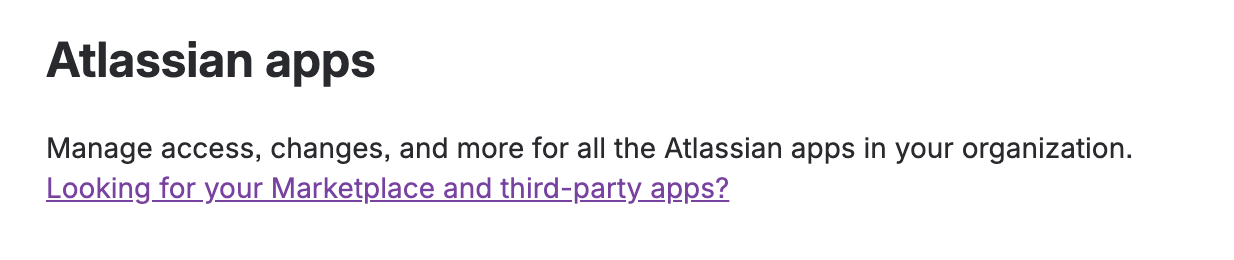
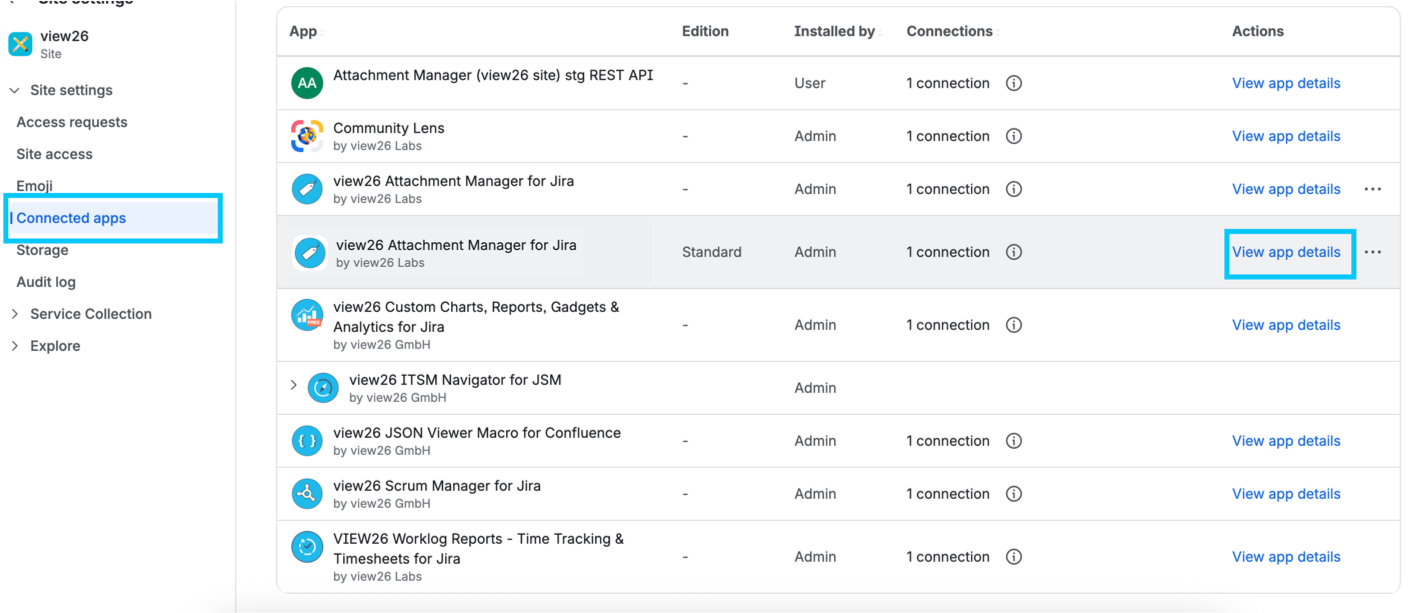
Select Apps → Atlassian Apps and select the link shown in the screenshot below to open Connected apps. Select the correct site, then locate Charts and Reports for Jira Service Management.
-
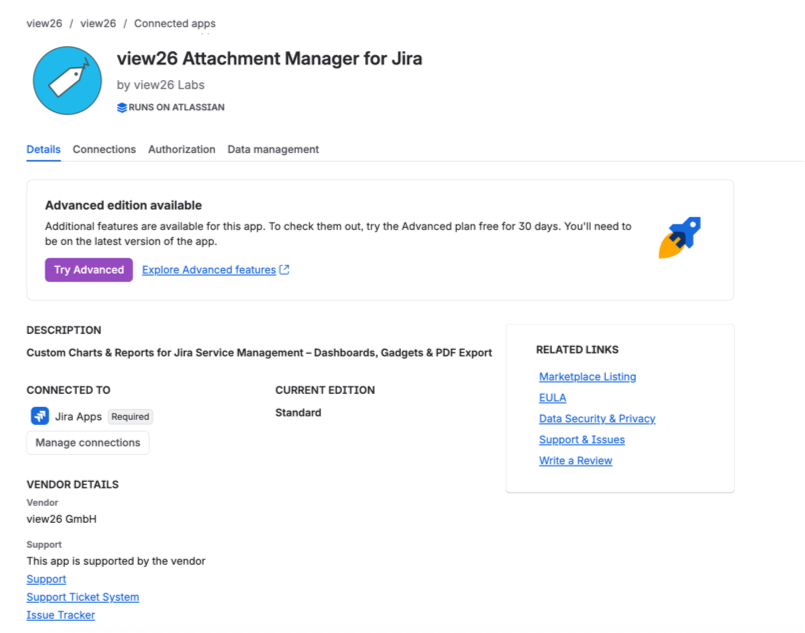
Choose Try Advanced button
-
You’ll be taken to a page showing a feature and price comparison between the two editions. Click Select Advanced.
A paid Standard subscription remains billable during an Advanced trial. Follow the terms shown at checkout. See Atlassian’s app edition guidance for current subscription details.
Start using Advanced features
Organize and share folders
In Jira, open Apps → Attachment Manager → Folders. Create a folder, add attachments from the Attachments tab, and share a top-level folder with people or Jira groups. Use subfolders to organize files from different work items. See Folders and sharing for the steps.
Connect your tools with the REST API
Use the API to list labels, read and change attachment labels, and search attachments across projects. A site or organization administrator must enable App REST APIs for Attachment Manager in Connected apps. Your developer then configures an OAuth 2.0 integration. Follow REST API — setup and usage.
Your team still needs the Attachment Manager - Use App permission, and Jira permissions continue to control access to files and actions. Sharing a folder or enabling the API does not grant extra access to work items.
The Policies tab is marked coming soon. Policies are not yet available, including on Advanced.
Need help?
-
The upgrade option is missing: check the selected site and your administrator access.
-
Advanced is active, but an upgrade notice remains: check for required app updates, then reload the app.
-
REST API calls fail: confirm that App REST APIs are enabled and follow REST API errors and limits.
Contact VIEW26 Support with your site URL and a description of what you see. For other questions, see FAQ and troubleshooting.