
Folders collect files from any project in one place. You can put folders inside folders (subfolders) and share them.
Folders are part of the Advanced edition. See Editions and permissions.
Create and organize folders
-
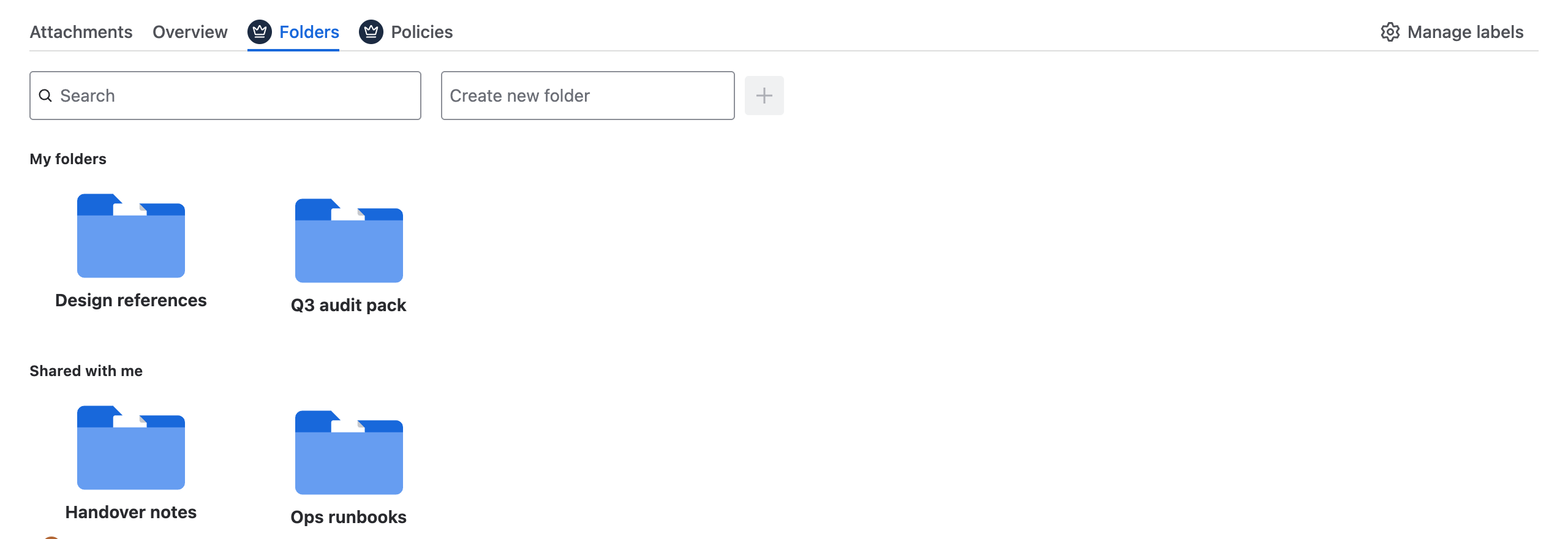
Open Apps → Attachment Manager and select the Folders tab.
-
Type a name in Create new folder and select +.
-
To make a subfolder, open a folder and create the new folder there.
Open the menu on a folder you own to Rename, Move to…, Share… or Delete it. Deleting a folder also deletes its subfolders, but never the files; they stay on their work items.
Add attachments
-
On the Attachments tab, tick the files.
-
Select Add to folder.
-
Pick a folder, or type a new name to create one.
-
Select Apply.
Adding a file to a folder does not move it; it stays on its work item and can be in several folders. Inside a folder, tick files and select Move to folder, or Remove to take them out. Remove does not delete the file. You can also drag files onto another folder.
Share a folder
You can share a top-level folder you own (one that is not inside another).
-
Open the folder's menu and select Share….
-
Choose Groups (Jira user groups) or People and search for a name.
-
Select Add, then Done.
Everything inside the folder is shared too. The people you share with find it under Shared with me; they are not notified. They can add and remove files, but only you can rename, move, share or delete the folder. To stop sharing, open Share… again and remove the name under Shared with.
Moving a shared folder inside another folder stops the sharing.
Sharing a folder does not change Jira permissions. People only see the files on work items they can already open in Jira.
Find a folder
Use the Search field at the top of the Folders tab.