
In Storyboard AI for Jira, you trim and split a video clip with Split & Trim Video, a video editor built into the frame editor. Trimming sets where a clip starts and ends. Splitting cuts one screen recording into several frames, so each part can get its own narration, transition and timing. The original file is never changed and doesn't need to be uploaded again.
Open the video editor
-
Open the Jira work item and click Open editor in the Storyboard AI panel.
-
Add your video as a frame with Add Frames.
-
On the video frame's thumbnail, click Edit (the scissors icon).
The Edit button only appears on video frames. Image frames use zoom targets instead (see Edit Video Frames).
Trim a clip
-
Drag the yellow handle on the left edge of a segment to set where it starts.
-
Drag the yellow handle on the right edge to set where it ends.
-
Click Create 1 Frame to save.
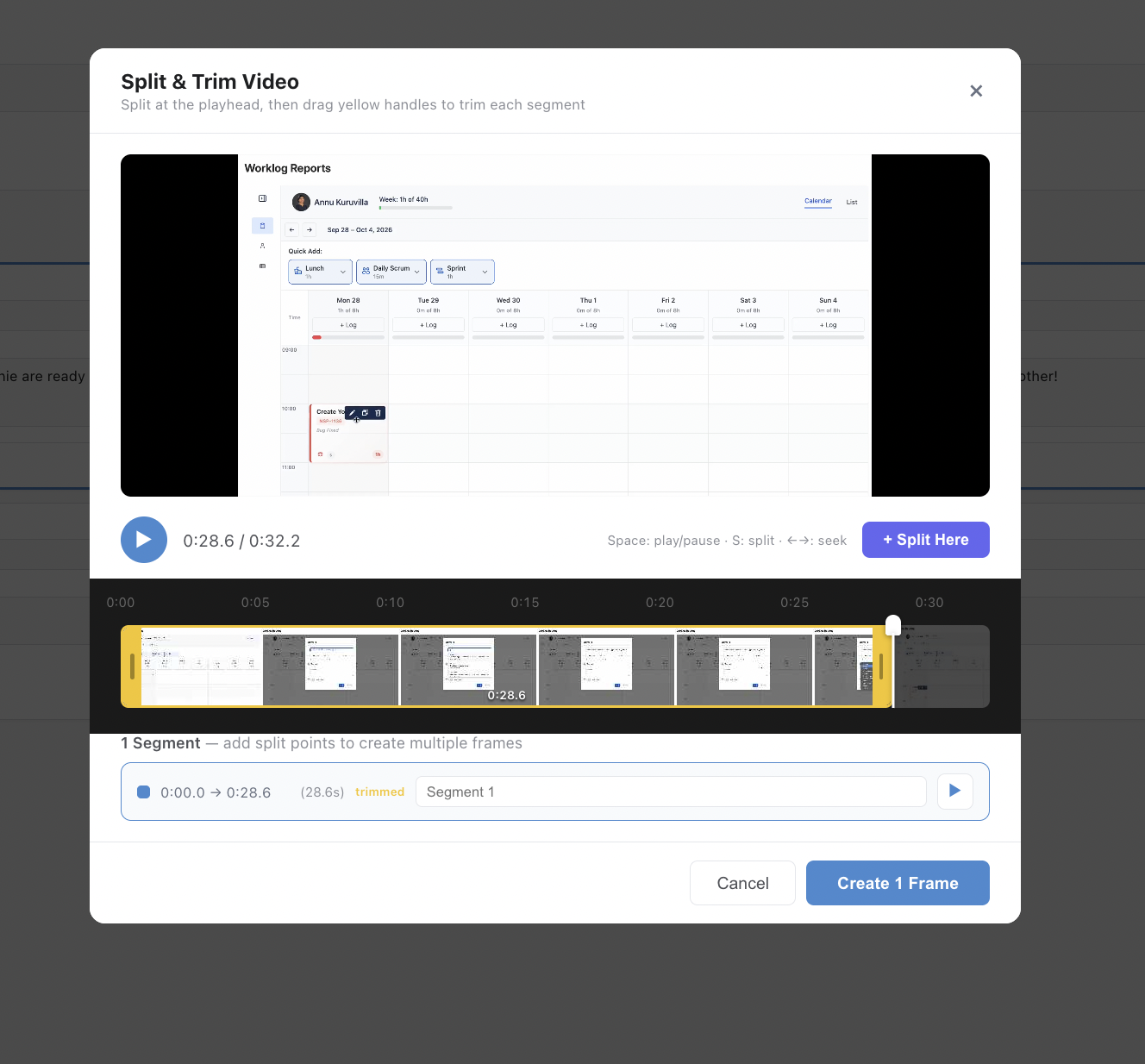
While you drag, a tooltip shows the exact time. A trimmed segment is labelled trimmed in the segment list. The frame's length updates to the trimmed length.
Split a clip into several frames
-
Move the playhead to where you want to cut. Click the timeline or drag the playhead.
-
Press S to split at the playhead. Repeat for each cut.
-
Optionally trim each segment with its yellow handles.
-
Name each segment in the list. The name becomes the frame's name.
-
Click Create N Frames, where N is the number of segments.
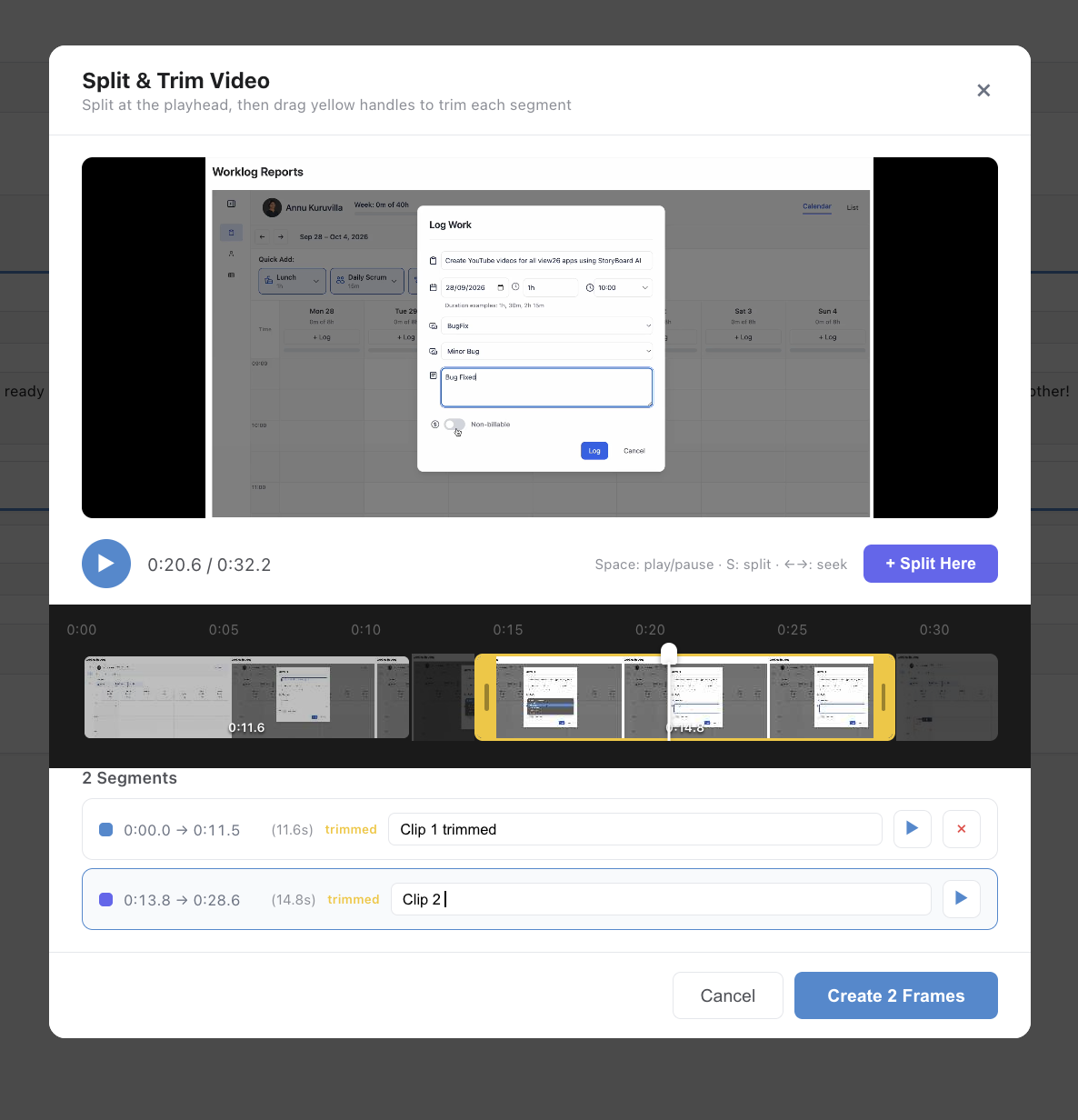
The first segment replaces the frame you opened. Each other segment becomes a new frame that plays the same clip from its own start and end point. New frames start with no narration, so write a script for each one or leave it silent.
To undo a cut before saving, click × next to the segment in the list.
Preview before saving
-
Click ▶ next to a segment to play only that segment.
-
Click the video, or press Space, to play or pause.
-
Press ← or → to move the playhead back or forward one second.
Re-edit a frame later
Click Edit on the frame again. The editor opens with the frame's current start and end points, so you can adjust the trim or split it further.
Mute a clip's own audio
Click the speaker icon on a video frame's thumbnail to mute or unmute the clip's original sound. Your narration and background music still play.
Limits
-
The shortest segment is 0.3 seconds.
-
Video files can be up to 200 MB. Clips larger than 1920×1080 are resized automatically when you add them in the editor.
-
The video editor works in the frame editor only. The Storyboard AI agent in Rovo can't trim or split clips.