
Export a reporting view as a PDF for a service review or stakeholder update.
Before you begin
Open the intended view and check its reporting period and filters. Ask a Jira administrator to configure the report logo and colour palette if you need branded output.
Video: Create a branded PDF service report
See how to set branding, scope a customer review, add commentary and export the finished PDF. An administrator configures the logo and colour palette.
Watch time: 1:29. The demonstration uses fictional service desk data.
Watch Create a branded PDF service report on YouTube (captions and playback controls)
Export a PDF
-
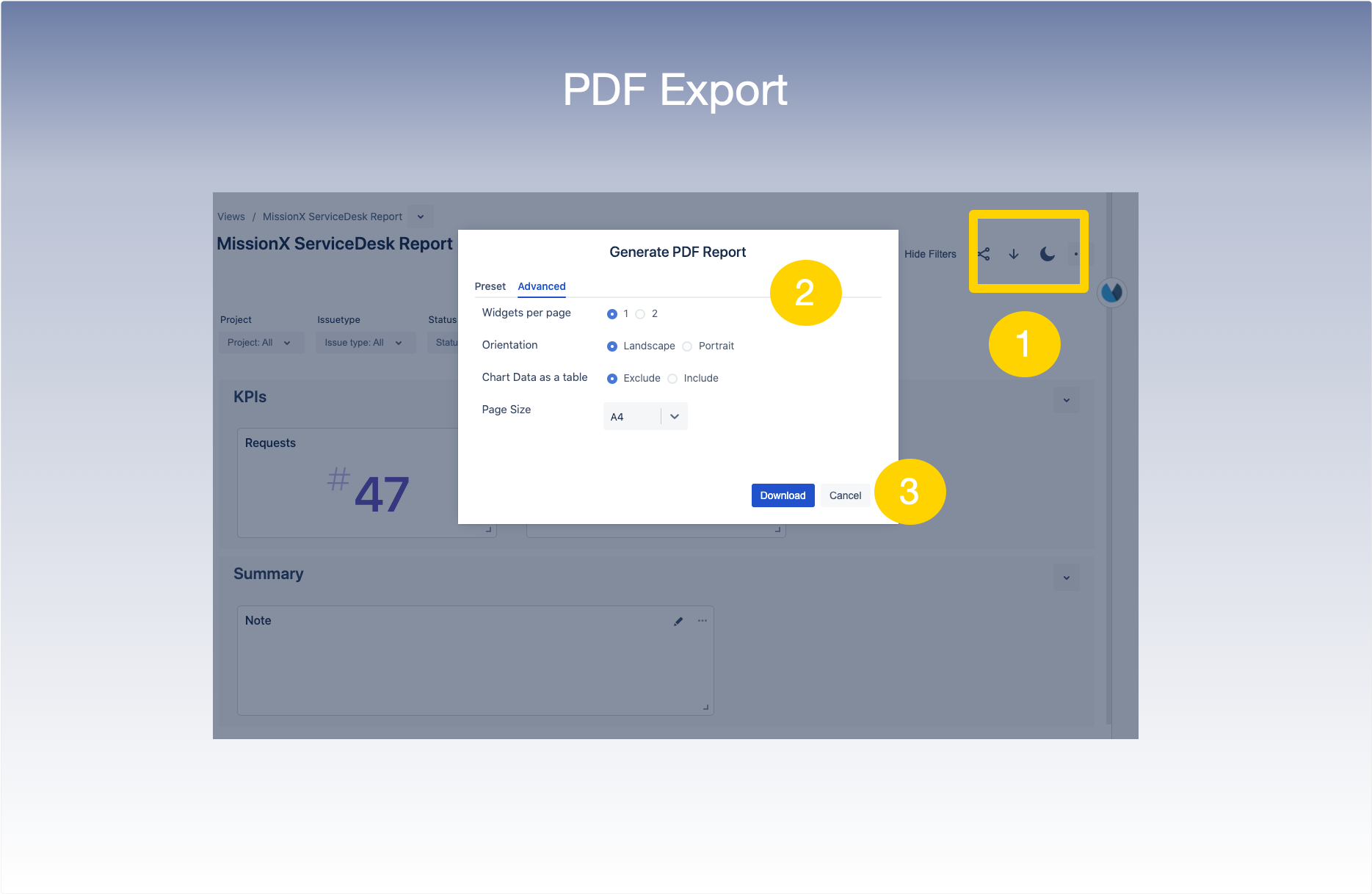
Open the view you want to export and select Download at the top of the view.
-
Choose a Preset Quick Style, or use the Advanced options tab to customize the report.
-
Select Download to save the PDF report.
Check the result
Open the downloaded PDF and check the reporting period, charts and branding before sending it to recipients.
Related help