
Create a meeting
-
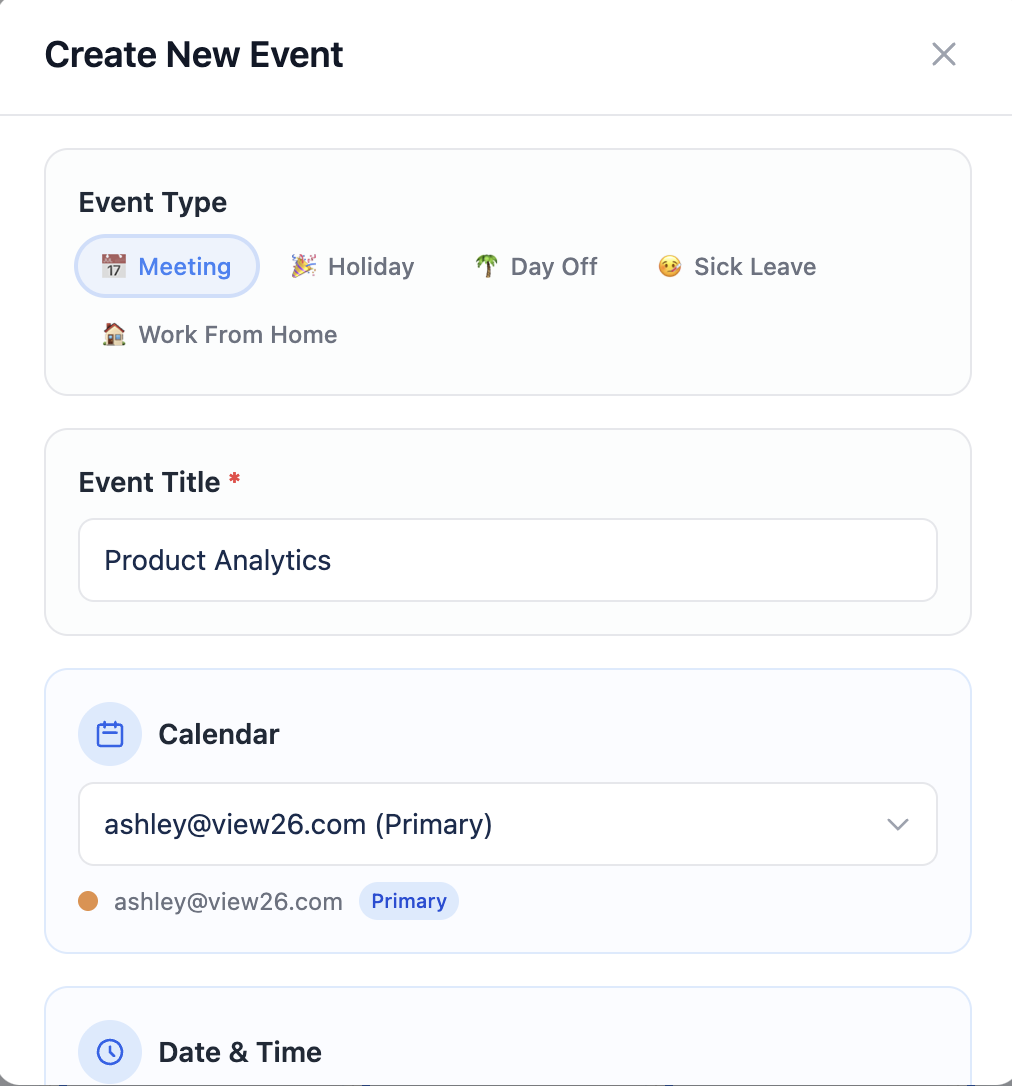
In the Calendar view, click the Add Calendar Event button.
-
Select the event type : Meeting, Sick leave, Holiday so on
-
Fill in the form :
-
Title
-
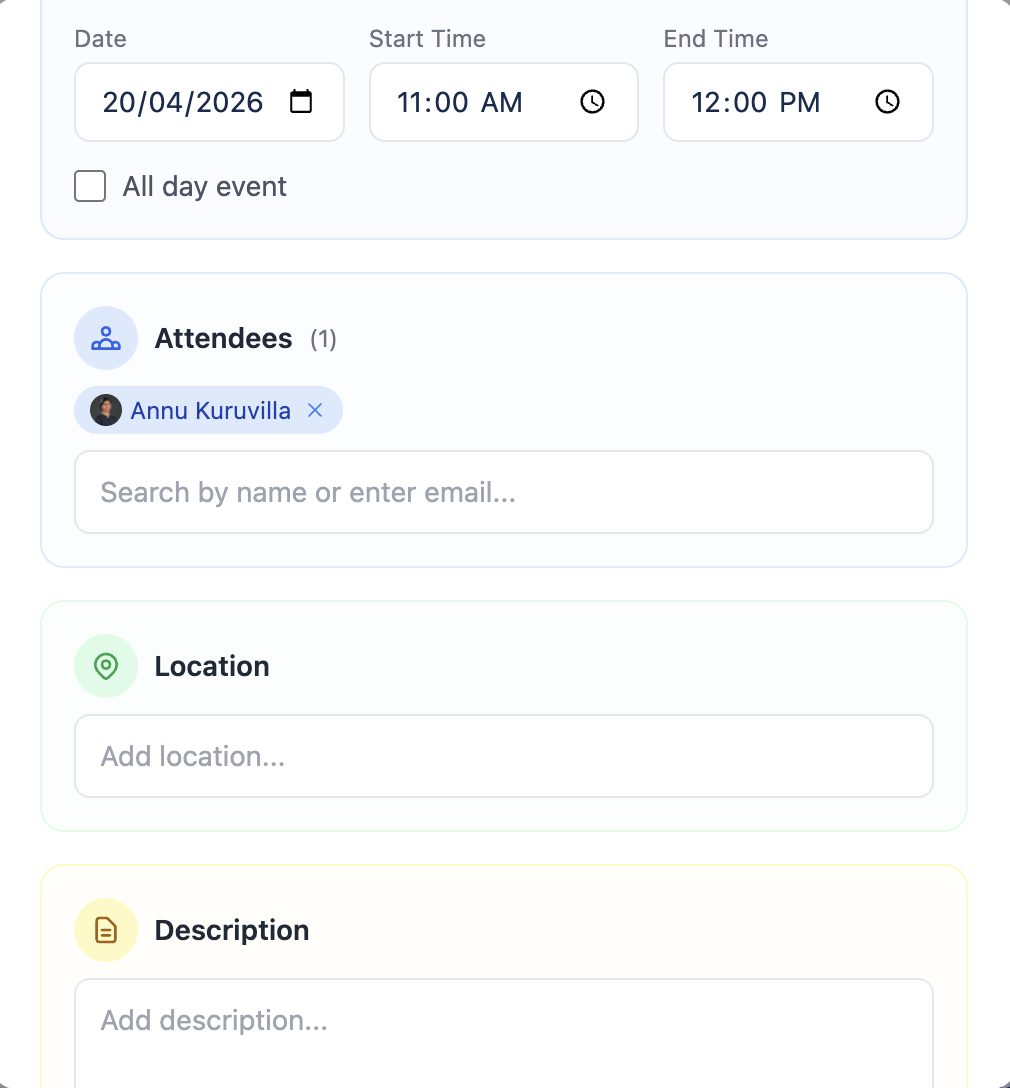
Date, start time, end time
-
Description
-
Add Attendees for meeting events - search Jira users by name, or type any email address and press Enter to add external attendees
-
-
Click Create Event.
What happens on Create
-
A Google Calendar event is created on your selected calendar
-
Google delivers invites to the attendees you added
-
If you enabled Google Meet, a Meet link is generated and attached
-
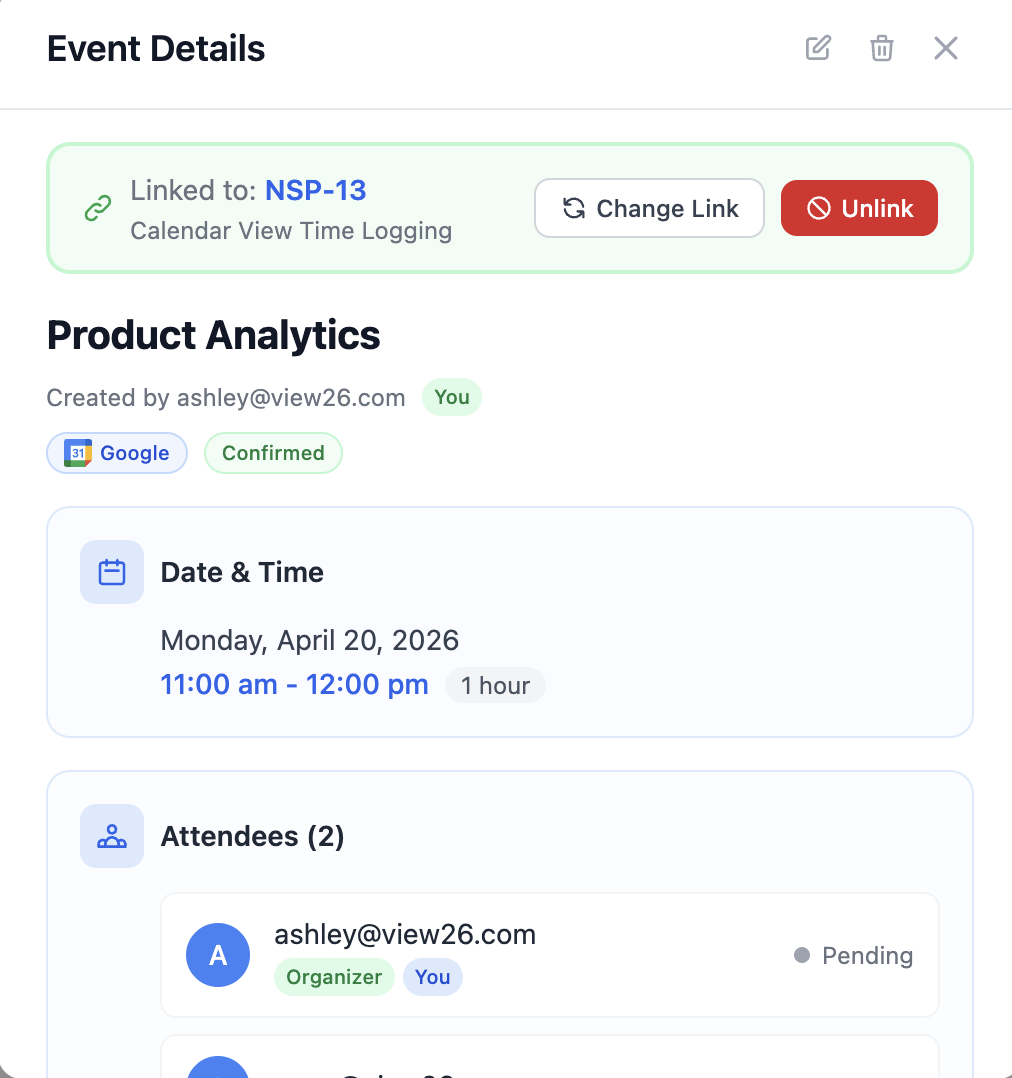
A Meeting-category worklog is automatically created on linking Jira issue with the meeting's duration
Edit a meeting
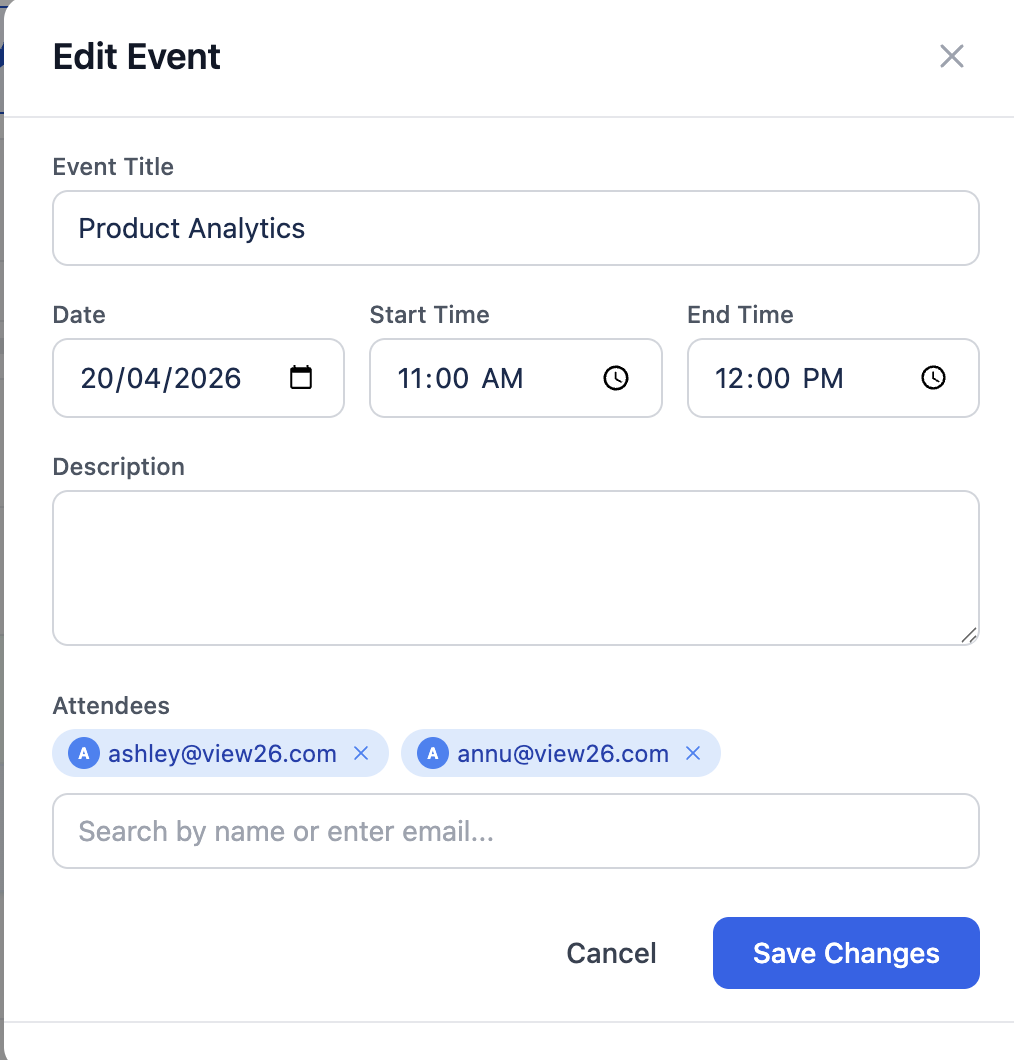
Click a meeting card in the Calendar view → Edit → change any field → Save.
-
Only the meeting's organiser (creator) can edit it from inside Worklog Reports. If you were invited to a meeting but didn't organise it, the Edit button is hidden — open the event in Google Calendar to modify.
-
Google handles attendee notifications for time or attendee-list changes.
-
Linked-issue changes: newly-linked issues get a new Meeting-category worklog; unlinking an issue removes its worklog.
Delete a meeting
Click a meeting card → Delete → Confirm.
-
The event is deleted from Google Calendar.
-
The auto-created Meeting worklog on each linked Jira issue is deleted.
-
Only the organiser can delete.