
Google permissions requested
The integration asks Google for:
-
Read access to your calendar list
-
Read/write access to your calendar events
-
Your Google account email
The integration does NOT request Gmail, Contacts, Drive, Docs, Sheets, Meet recordings, or anything other than Calendar.
What Worklog Reports does NOT store
-
Your Google password or access token - Atlassian's Forge External Auth holds the token; we never see it
-
Meeting titles, times, descriptions, or attendees - these live in Google Calendar and are fetched from Google at view time
-
Google Contacts, Gmail, or any other Google data
Data residency
Time-tracking data stored by Worklog Reports stays on Atlassian infrastructure and respects your Jira Cloud data residency configuration.
Disconnecting
From inside Worklog Reports:
-
Open the Calendar view.
-
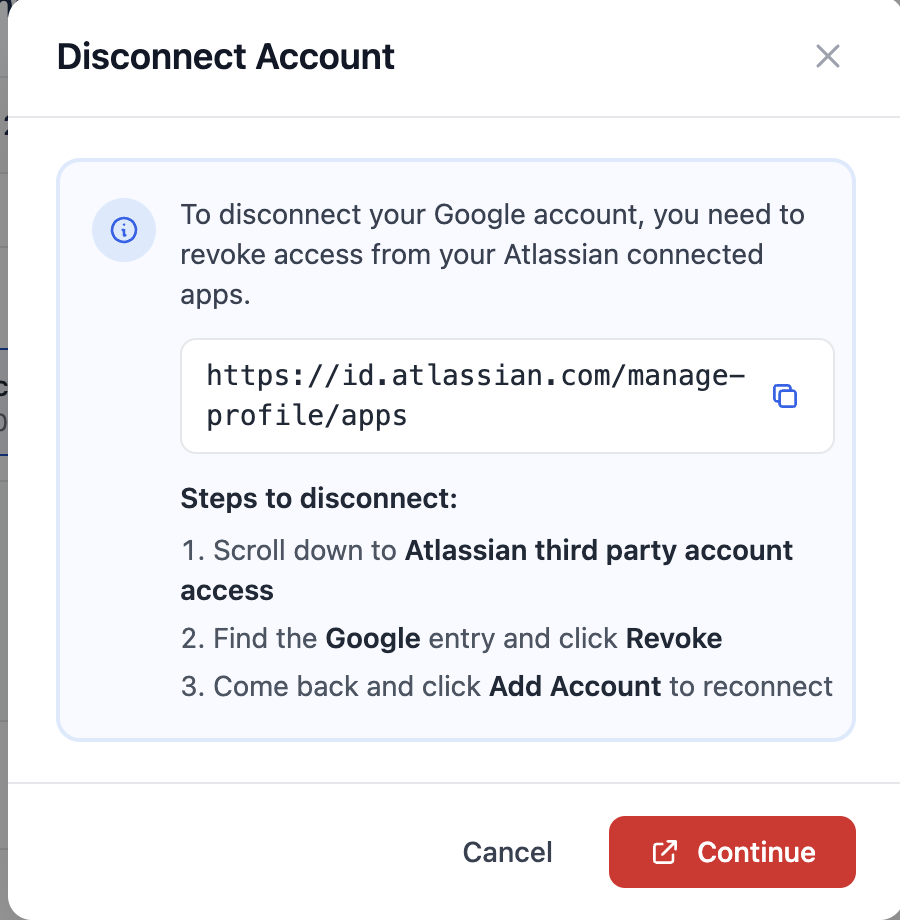
Click the Google account indicator in the top-right → Disconnect Account.
-
A dialog appears with a direct link to
https://id.atlassian.com/manage-profile/appsand the step-by-step. -
Click Continue - the Atlassian profile page opens in a new tab.
-
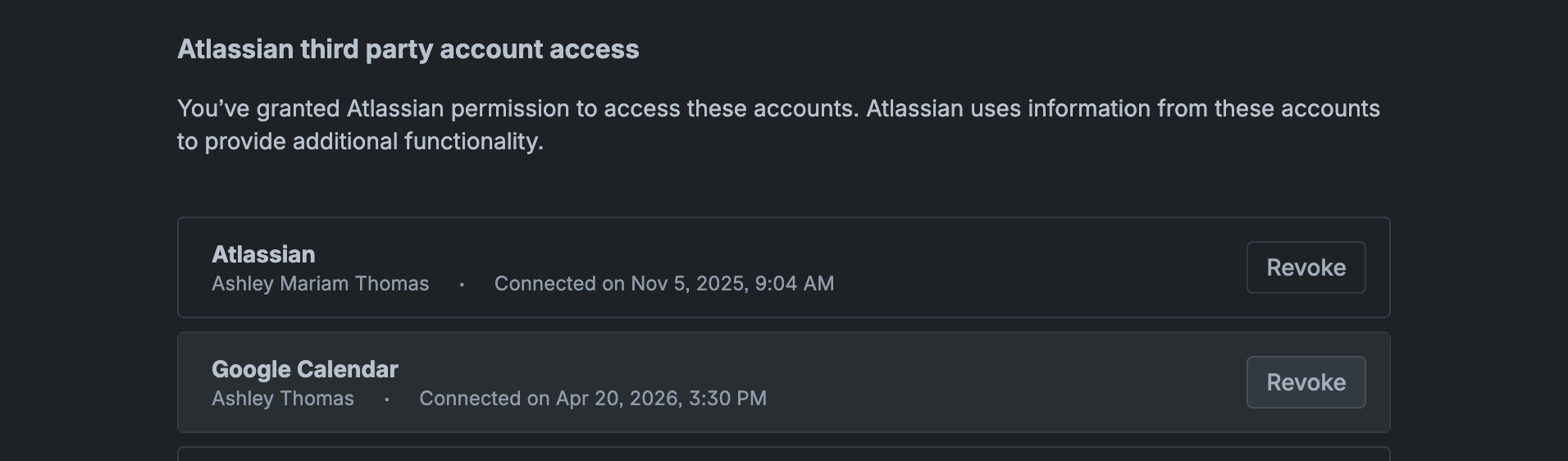
Scroll to Atlassian third party account access, find the Google entry, and click Revoke.
-
Come back to Worklog Reports and click Add Account if you want to reconnect (with the same or a different Google account).
After disconnecting
-
Google events no longer appear in the Calendar view
-
Conflict detection is turned off
-
Meetings you previously created from Jira remain in Google Calendar they're your events, not ours to delete; but Worklog Reports can no longer edit or delete them until you reconnect