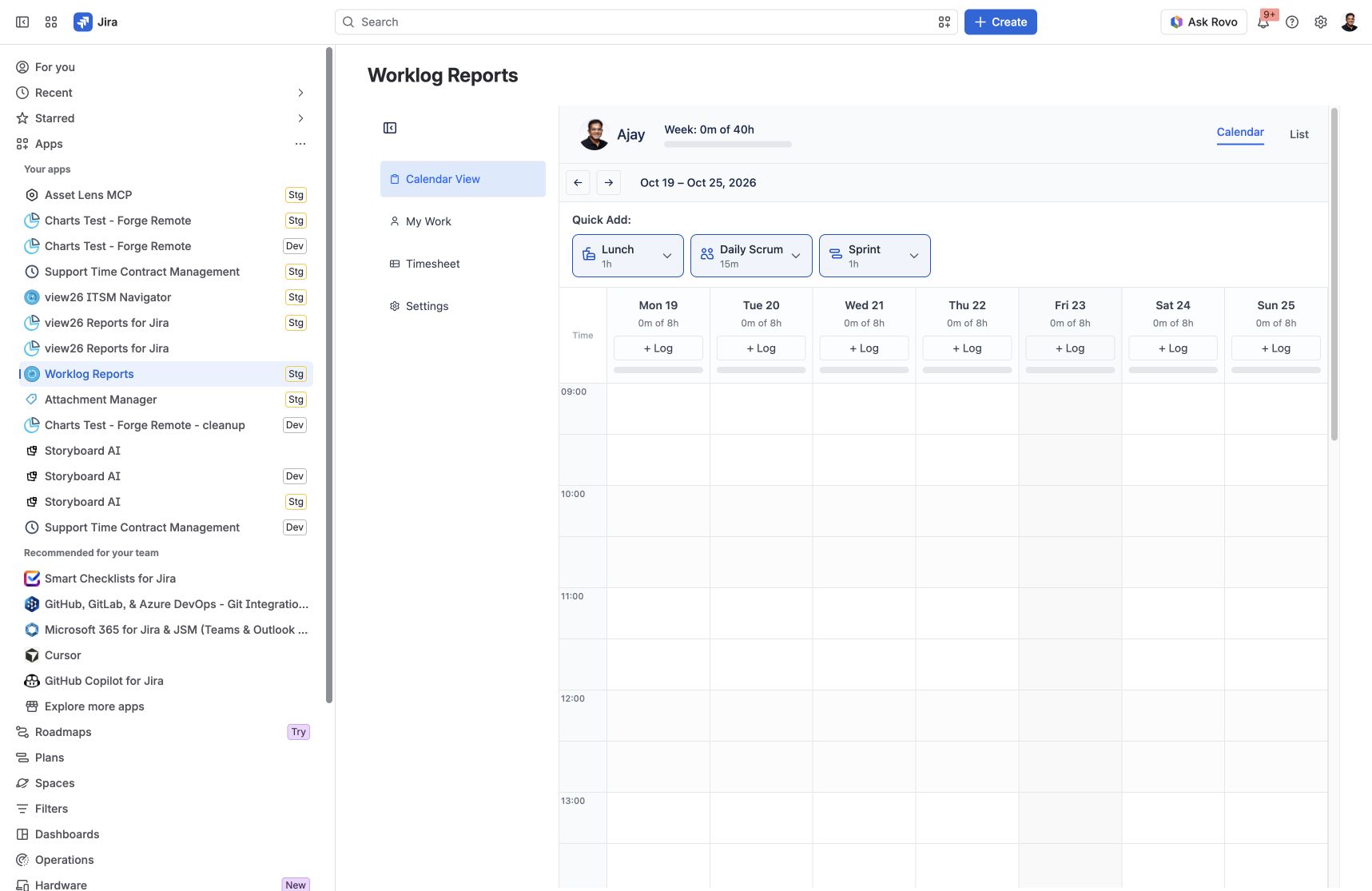
Quick Add buttons in Calendar View help you log recurring activities such as lunch breaks, daily scrums and planning sessions. Configure the reusable options in Settings.
Access to Settings is controlled by the Worklog Reports – View and Manage Settings app permission. If you cannot open Settings, ask your Jira administrator to review the app permissions assigned to your groups.
Create a Quick Add option
-
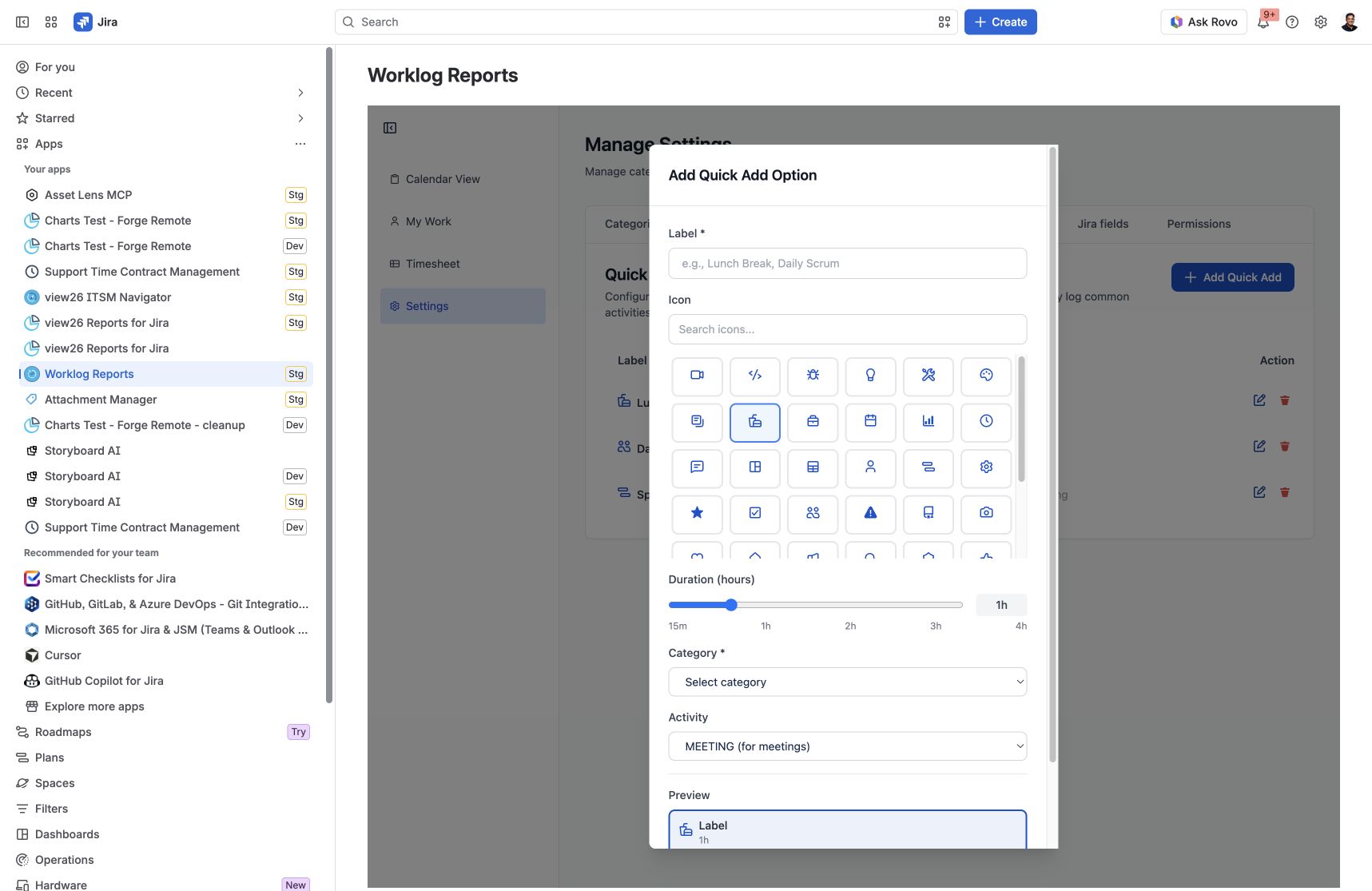
Open Settings → Quick Add and click Add Quick Add.
-
Enter a Label and select an Icon.
-
Choose the Duration and Category. If a Subcategory selector is shown, choose the appropriate subcategory.
-
Select the Activity type: BREAK for a break or MEETING for a meeting activity.
-
Review the Preview, then click Add. Use Cancel to discard changes.
Use and maintain your options
In Calendar View, click a Quick Add activity and choose a day from Select Day. Choosing the day adds the configured activity. Review the resulting entry and adjust its time if needed.
Return to Calendar View to find the configured activities under Quick Add. Existing options show their label, duration and category in Settings; use the row actions to edit or delete an option.
Quick Add activities are time entries in Worklog Reports. They do not create Google Calendar events, send meeting invitations or provide Google meeting conflict checks.
Manage categories and subcategories
Screenshots
Add Quick Add Option: choose a label, icon, duration, category and activity type.
Calendar View remains available for worklogs, Quick Add activities and target progress.