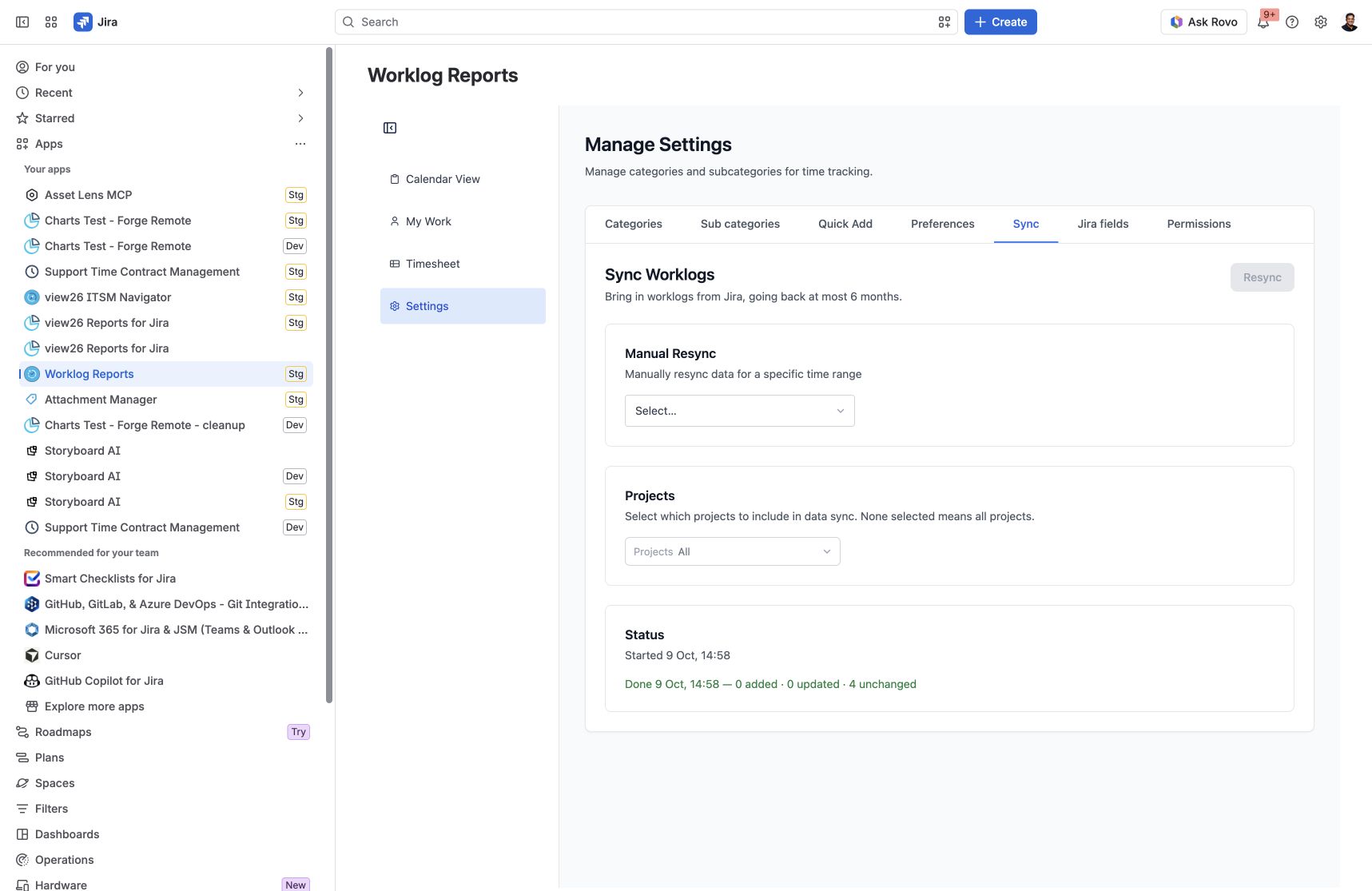
Use Sync to bring worklogs into Worklog Reports from Jira. The available historical sync window goes back at most six months.
Access to Settings is controlled by the Worklog Reports – View and Manage Settings app permission. If you cannot open Settings, ask your Jira administrator to review the app permissions assigned to your groups.
Run a manual resync
-
Open Settings → Sync.
-
Under Manual Resync, choose an update window: last 24 hours, last 7 days, last 4 weeks or last 6 months.
-
Choose the projects to include. No projects selected means all projects.
-
Click Resync, then check the relevant report after sync completes.
The selector is labelled “Updates since”. Choose the update window deliberately; it is separate from the date range you select later in Timesheet.
Check for missing time
-
Confirm the worklog exists in Jira and that you can access the issue.
-
Check the projects selected for sync.
-
Check the update window and the six-month historical limit.
-
In Timesheet, check the selected people, date range and filters. Clear unnecessary filters before comparing totals.
If time is still missing, contact support with the issue key, worklog date, selected projects and sync window, and the expected versus displayed duration. Avoid including passwords or authentication tokens.
Screenshots
Settings → Sync: choose an update window and project scope before starting a resync.