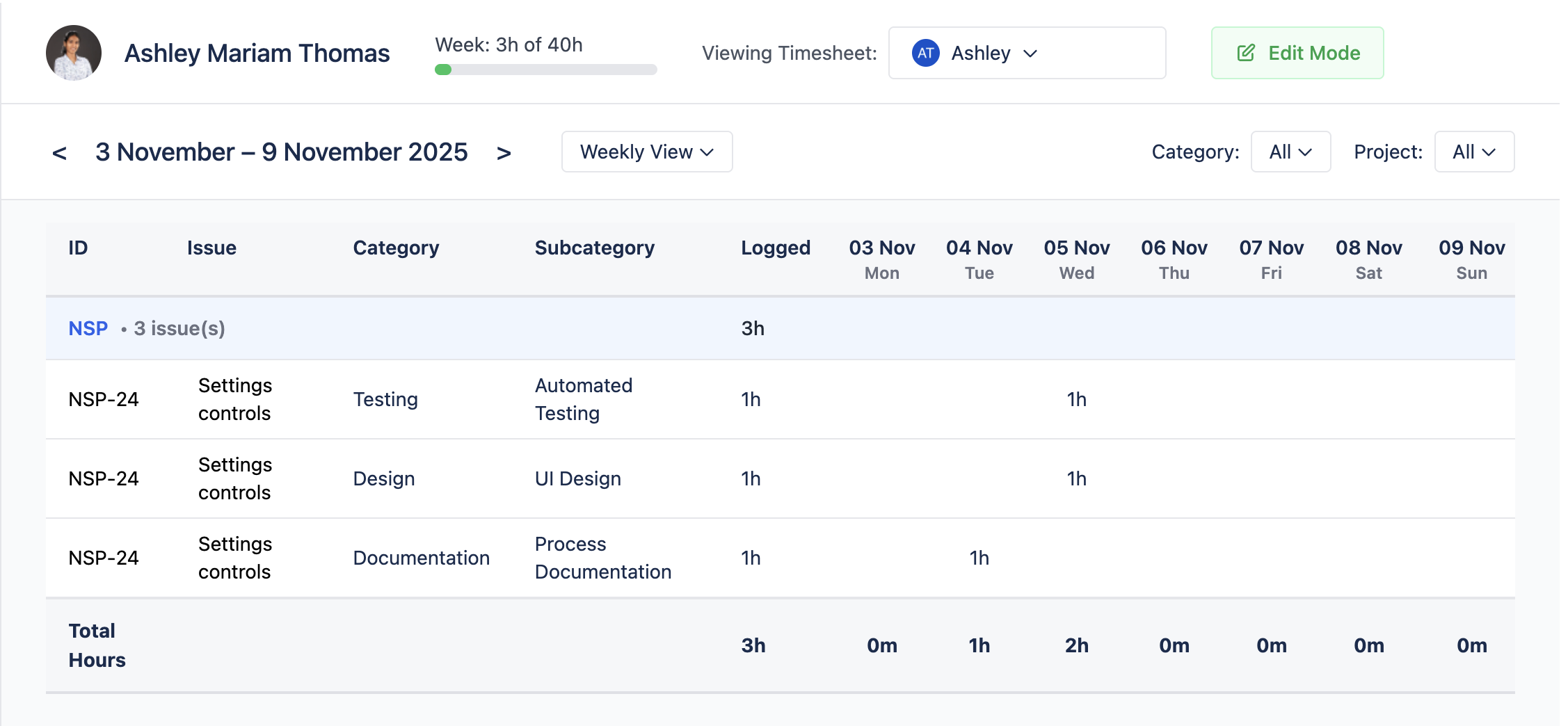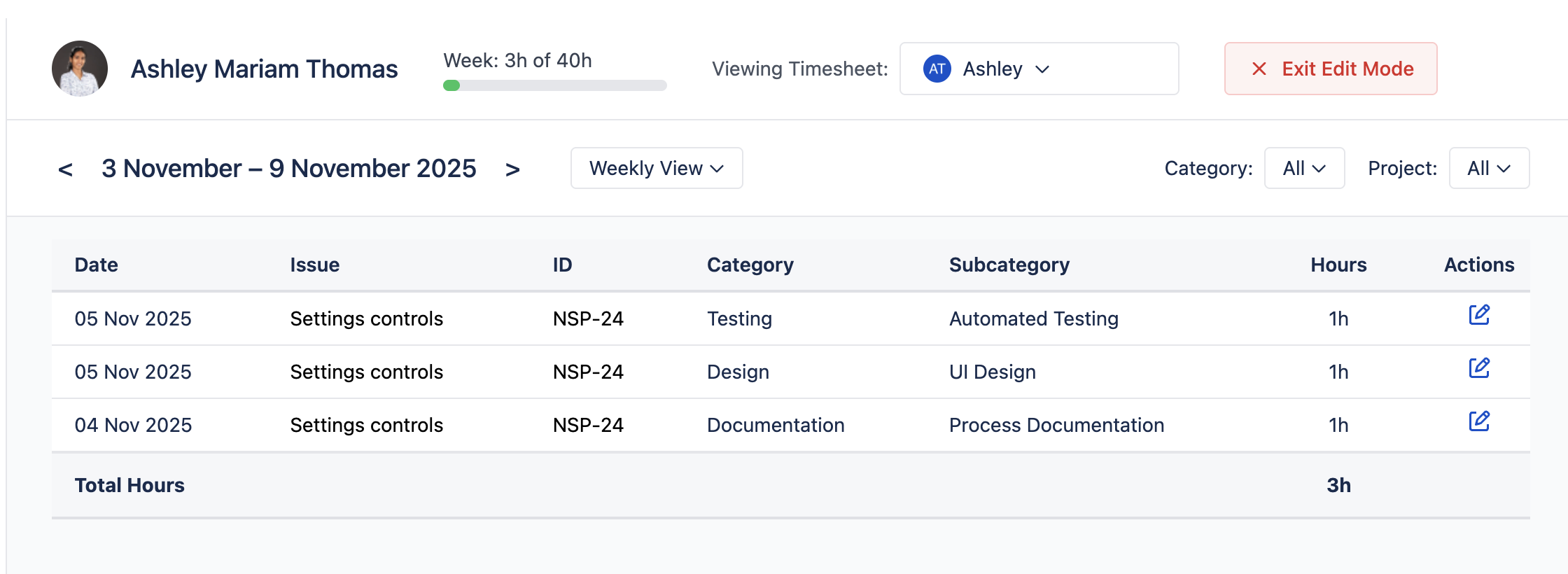
View and Manage Others Work Logs permission grants users full administrative capabilities to view and edit worklog entries for all users across the Jira instance. This permission combines viewing capabilities with editing rights, making it suitable for team administrators, project managers, and HR personnel who need to manage time tracking data on behalf of others.
STEPS TO GRANT PERMISSION:
-
Navigate to Global Permissions
-
Locate the Worklog Reports Permission
-
Scroll through the permissions list to find "Worklog Reports - View and Manage Others Work Logs"
-
This permission grants full administrative control over all worklog entries
-
-
Assign Permission to Groups
-
Click "Add Permission" or the edit icon next to the permission
-
Select the user group(s) you want to grant this permission to
-
Common groups include: project-administrators, hr-team, time-tracking-admins
-
Click "Grant" to save
-
From Worklog app , view any user's timesheet by selecting from the user dropdown in the TimeSheet page
Edit Mode capability:
-
Click the "Edit Mode" toggle button at the top of the TimeSheet page to enable editing
-
Once in edit mode, an edit icon appears in the Actions column for each worklog entry
-
Click the edit icon on any worklog entry to open the edit modal
-
Modify time spent, description, category, start time, or date
-
Save changes to update the worklog entry