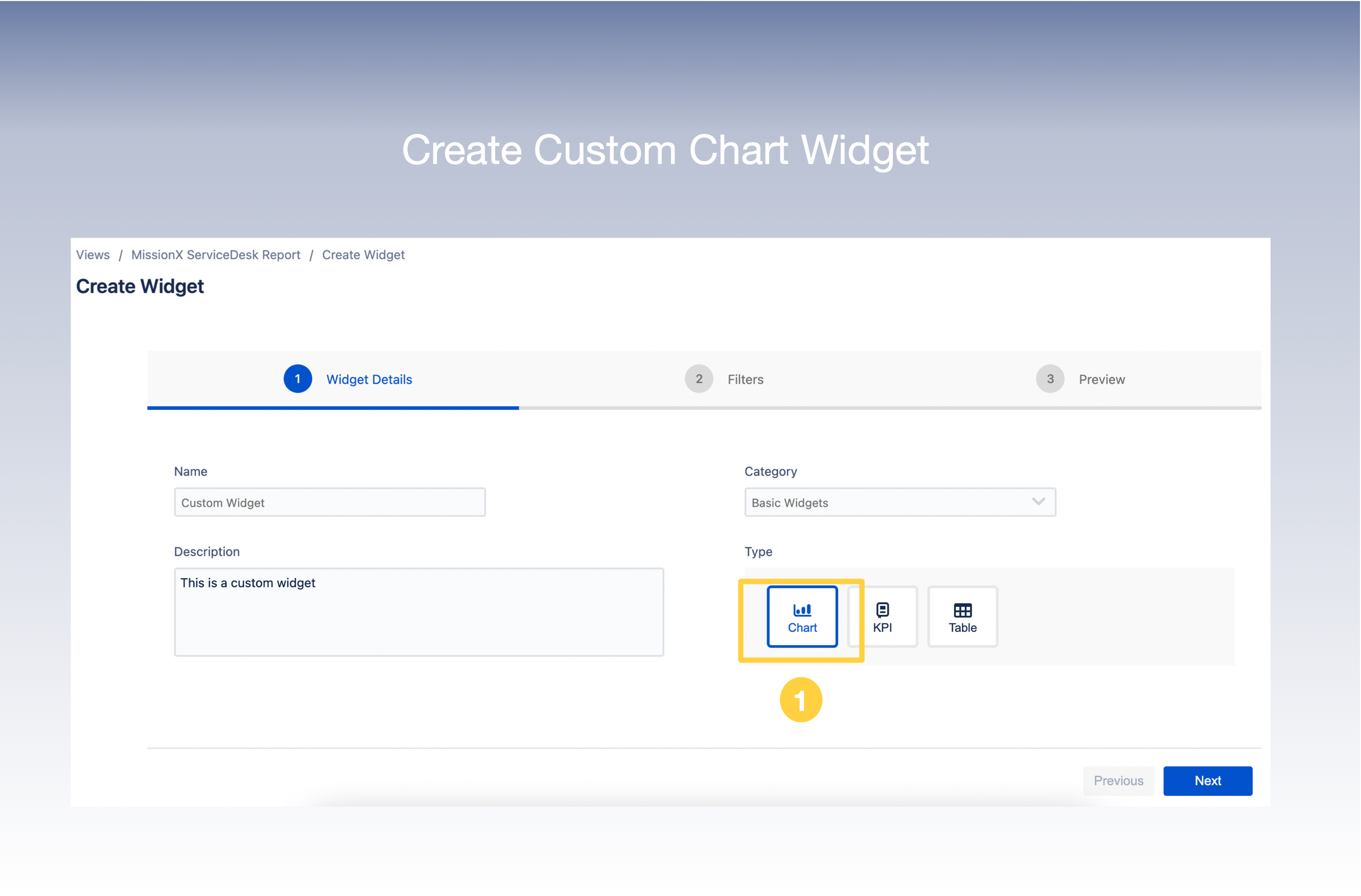
Let’s take a look at how to create a Custom Widget of Chart Type.
-
Select Type as Chart on the Create Widget screen
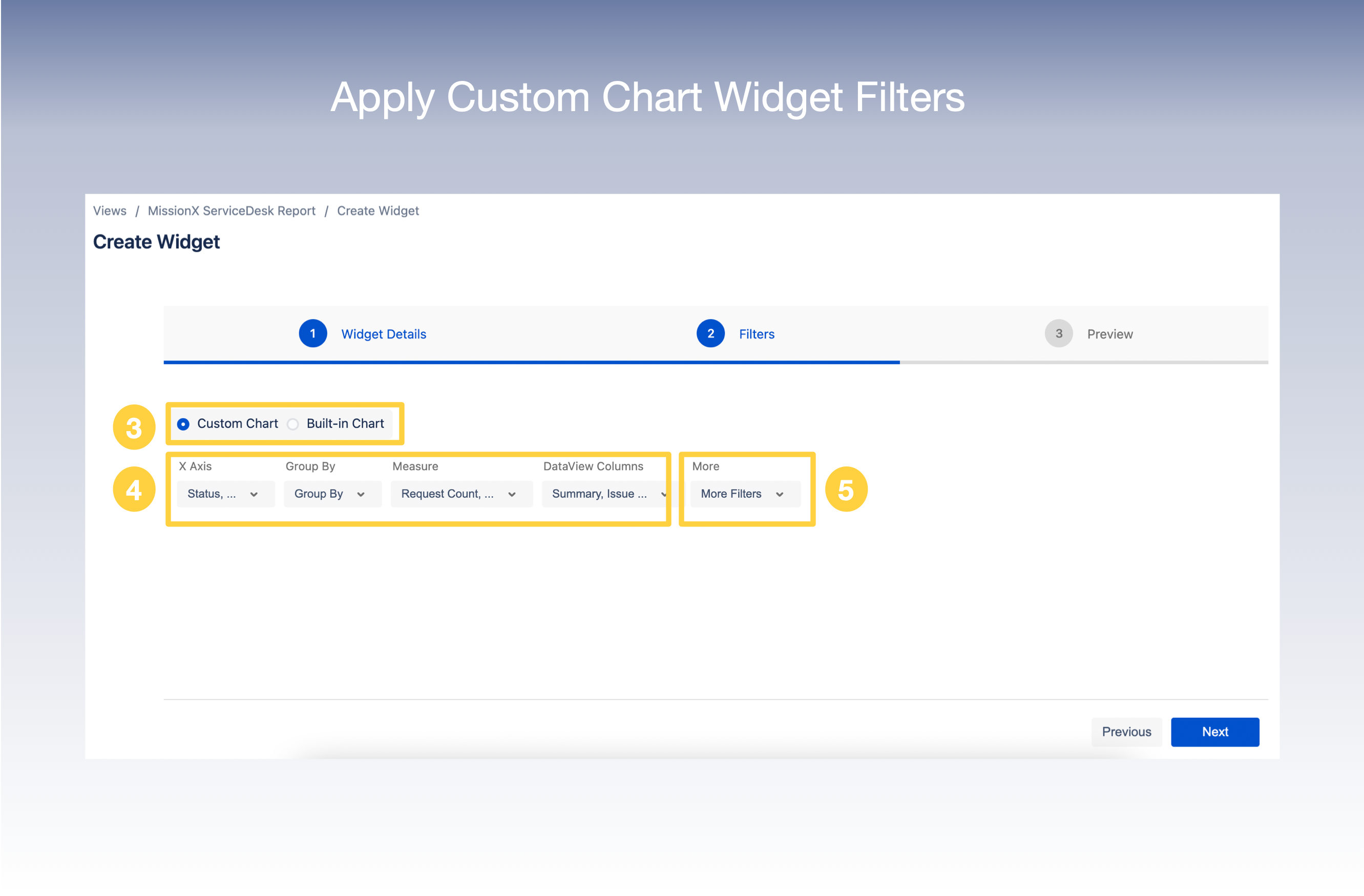
2. In the next screen, select the Filters you wish to apply to your view .
3. You can choose between Custom Chart and Built-in Chart.
4. Select your Filter criteria -
For Custom Chart- Select X Axis, Group By, Measures, Dataview Columns as required from the drop down lists.
For Built-in Chart -Select Built-in Charts, Dataview Columns as required from the drop down lists.
5. There is also an option to add More Filters.
6. Click Next
7. You can now get a preview of your Widget in any one of the formats displayed in the Chart Type section. Preview in Bar format has been displayed below.
8. Click Create . And now you have successfully created your Custom Chart Widget
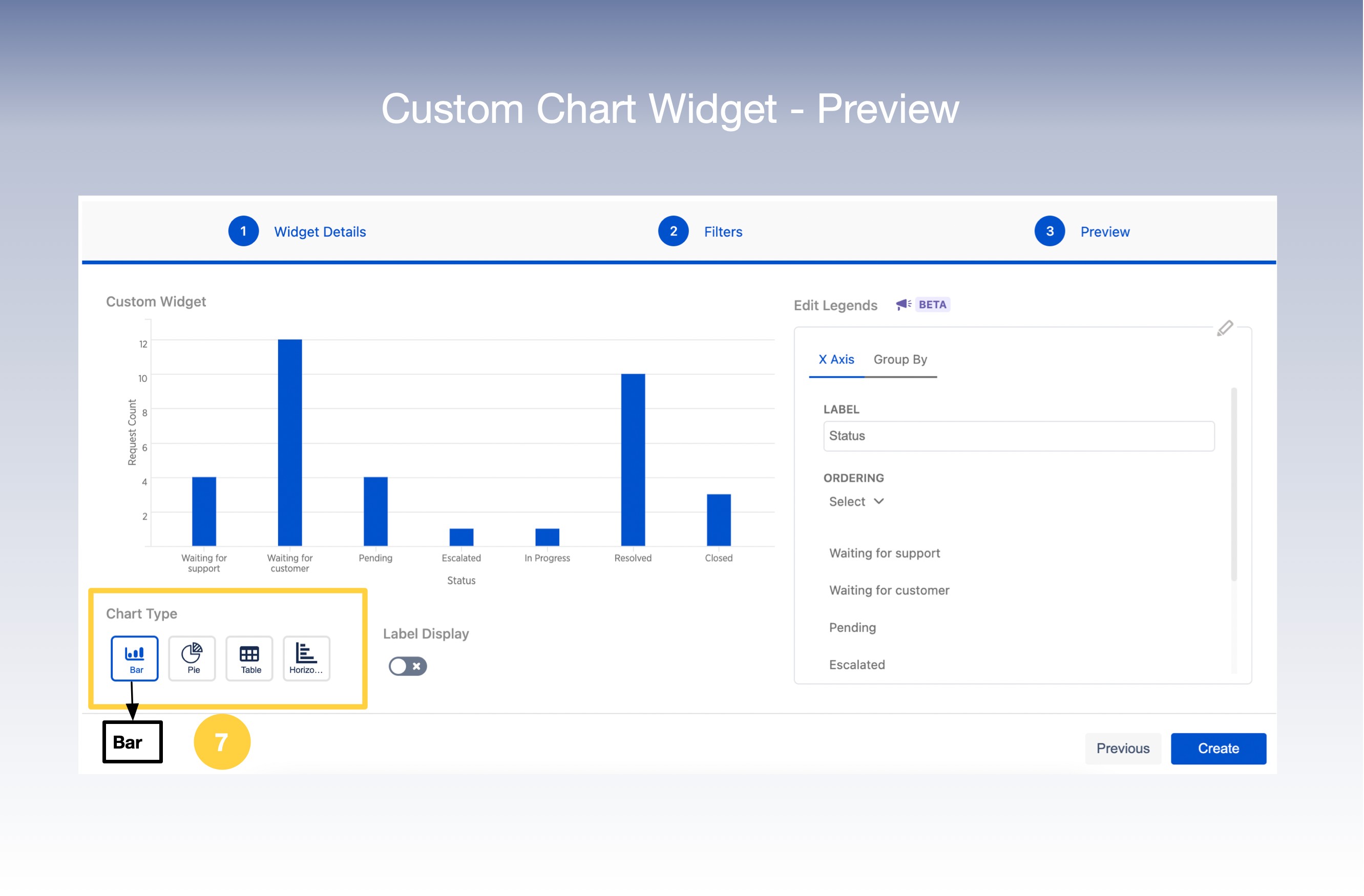
9. You can also Preview the widget in Pie, Table or Horizontal format.
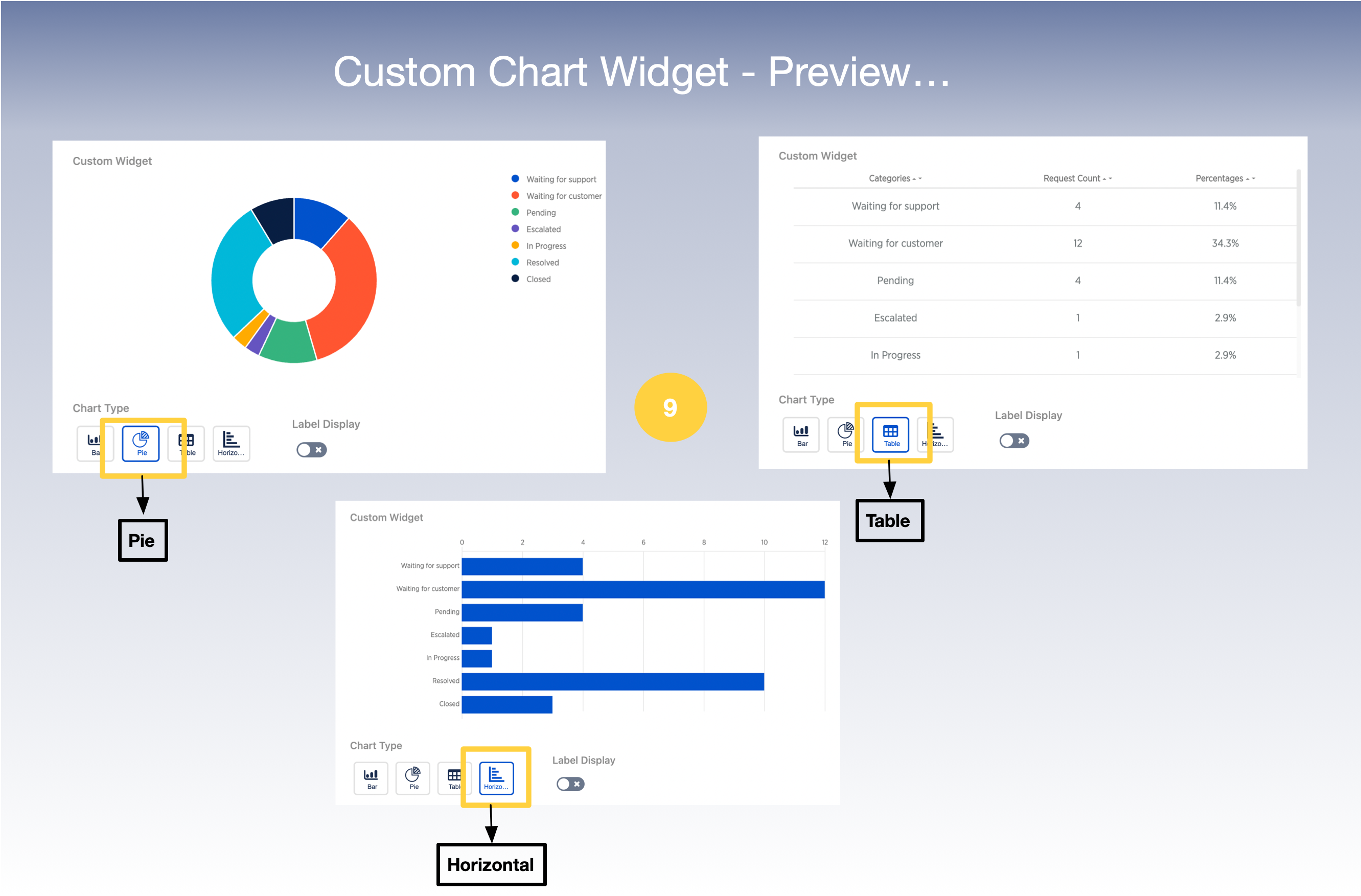
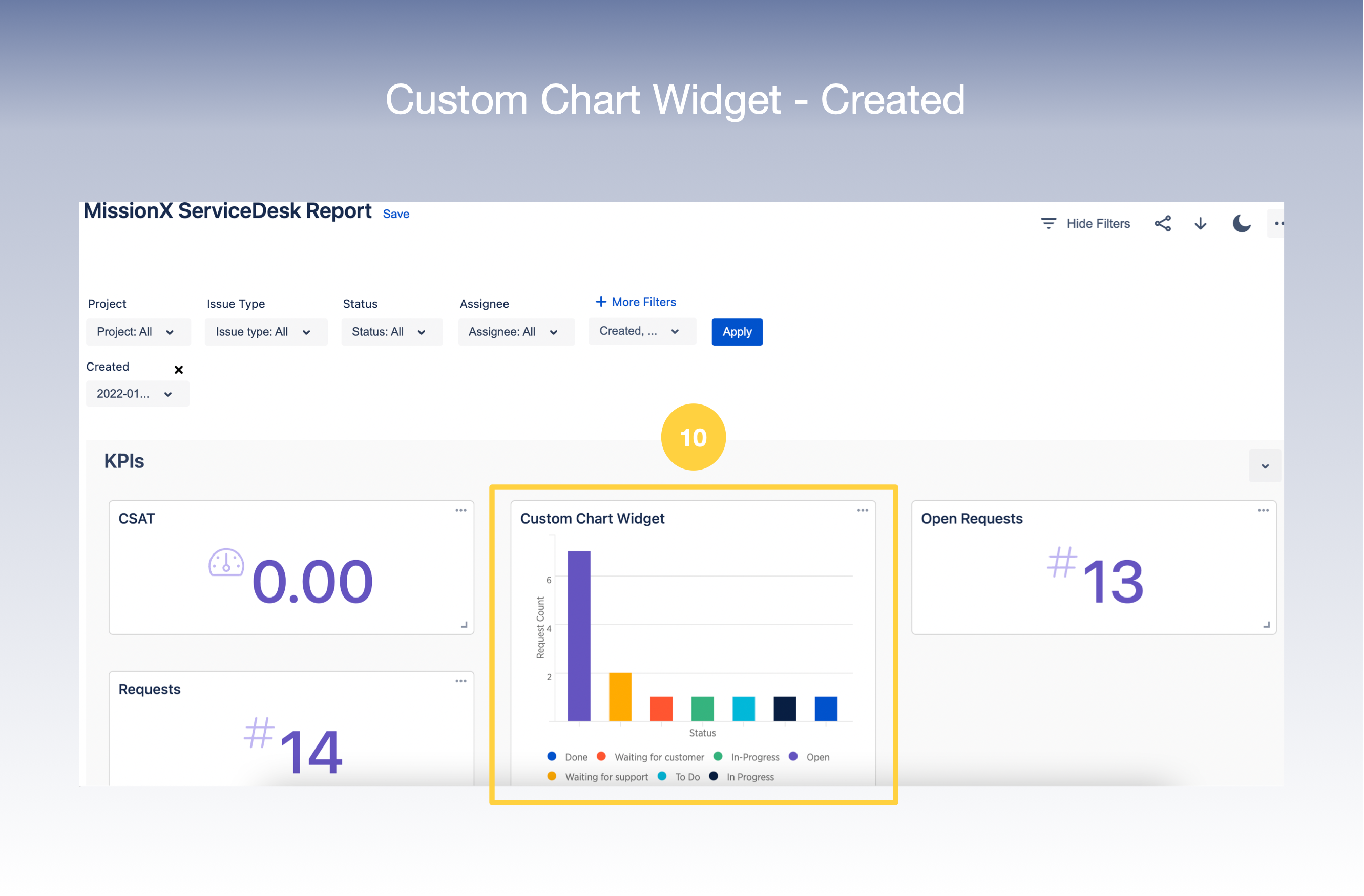
10. And now you have successfully created your Custom Chart Widget which will appear in your View.