
Charts and Reports for JSM offers Standard and Advanced editions. Upgrade to Advanced to add Backlog Trend, Time in Status, and Issue Aging to your reporting toolkit.
Before you begin
-
Sign in as an organization or site administrator and choose the site where the app is installed.
-
Check the Marketplace listing for edition features and pricing. For annual subscriptions, contact your Atlassian Customer Advocate to arrange the upgrade.
Upgrade from Standard to Advanced
-
Open Atlassian Administration and select your organization.
-
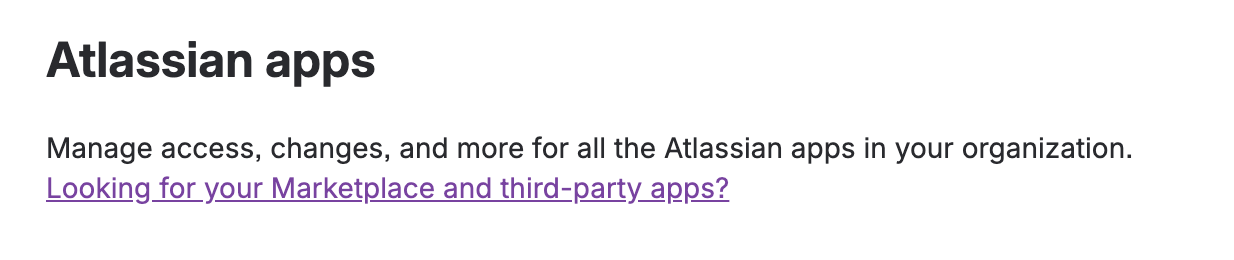
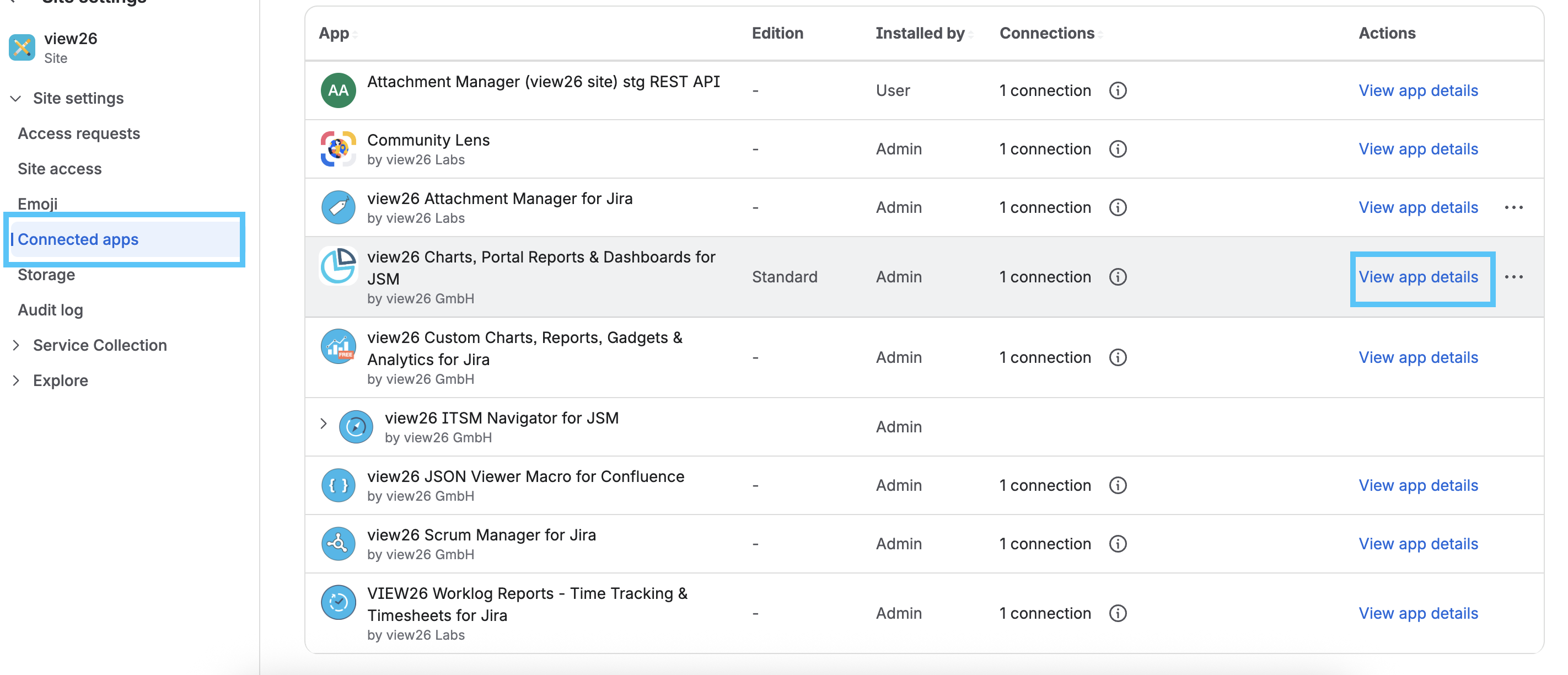
Select Apps → Atlassian Apps and select the link shown in the screenshot below to open Connected apps. Select the correct site, then locate Charts and Reports for Jira Service Management.
-
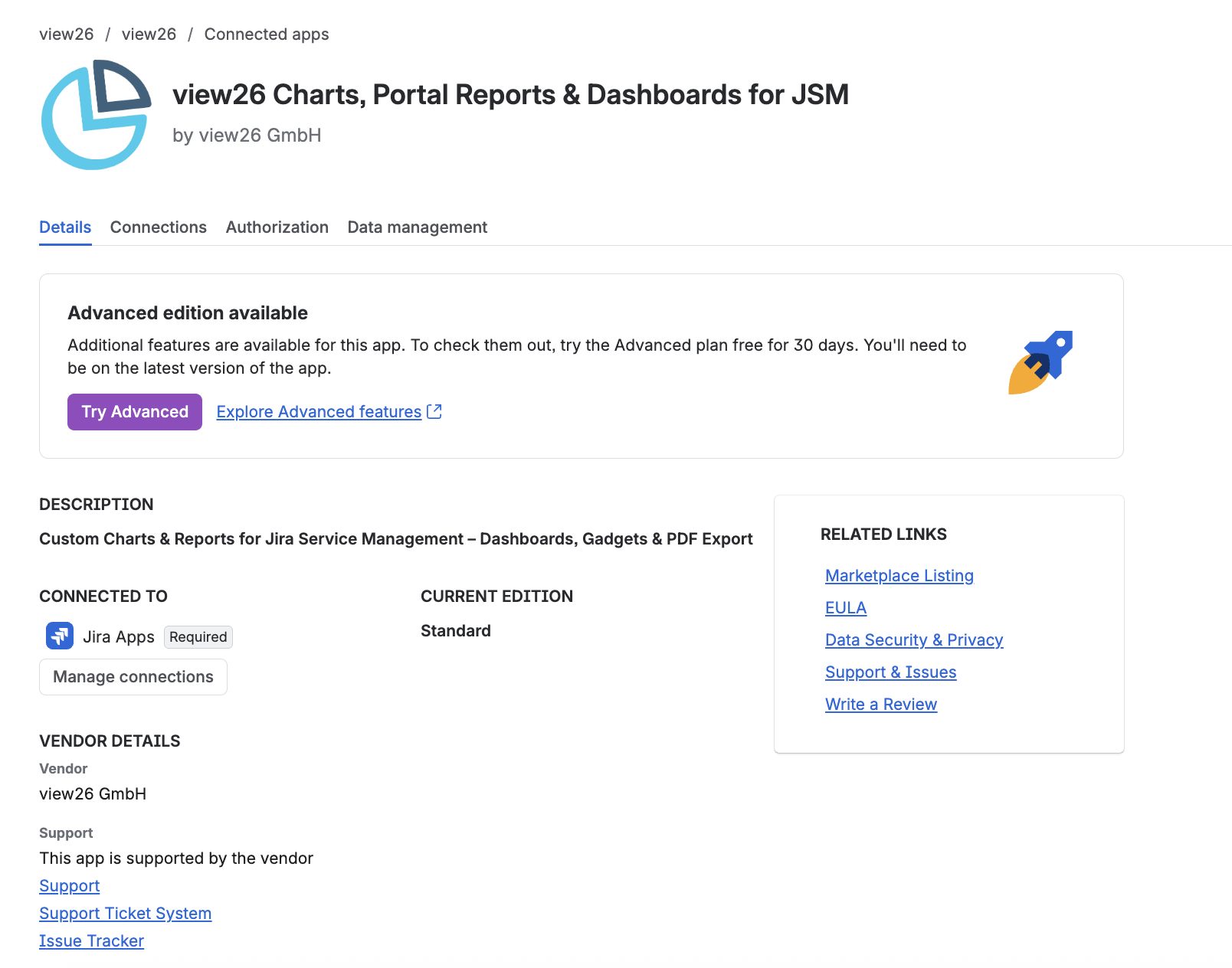
Choose Try Advanced button
-
You’ll be taken to a page showing a feature and price comparison between the two editions. Click Select Advanced.
A paid Standard subscription remains billable during an Advanced trial. Follow the terms shown at checkout. See Atlassian’s app edition guidance for current subscription details.
Start using Advanced widgets
Return to Charts and Reports for JSM and open a view you can edit. Select the blue + button, then find Advanced widgets in the widget library. Choose Backlog Trend, Time in Status, or Issue Aging.
For configuration steps and examples, see Advanced edition: analytics guide.
Need help?
If the upgrade option is missing, check the selected site and your administrator access. If Advanced is active but its widgets are unavailable, check for required app updates. Contact VIEW26 Support with your site URL and a description of what you see.
For more information about edition features, see Standard and Advanced editions: FAQs.